3 posts tagged with "console"

View All Tags

Task Manager and notifications added to the KakaoCloud console

· 5 min read
Ayla (조민경)
Service Manager
KakaoCloud console update

When managing cloud resources, you may need to repeatedly check the same page after requesting a resource creation or change to see how far the task has progressed. For bulk tasks that change multiple resources at once, it can also take time to determine which tasks have completed and where errors occurred.

To address these challenges, the KakaoCloud console now provides Task Manager and Notifications. Task Manager lets you monitor task progress in real time, while Notifications brings task results and important console updates together in one place. You can now track tasks in progress from anywhere in the console and quickly review the results when they are complete.

This post introduces how Task Manager and Notifications can help you manage resource tasks more efficiently.
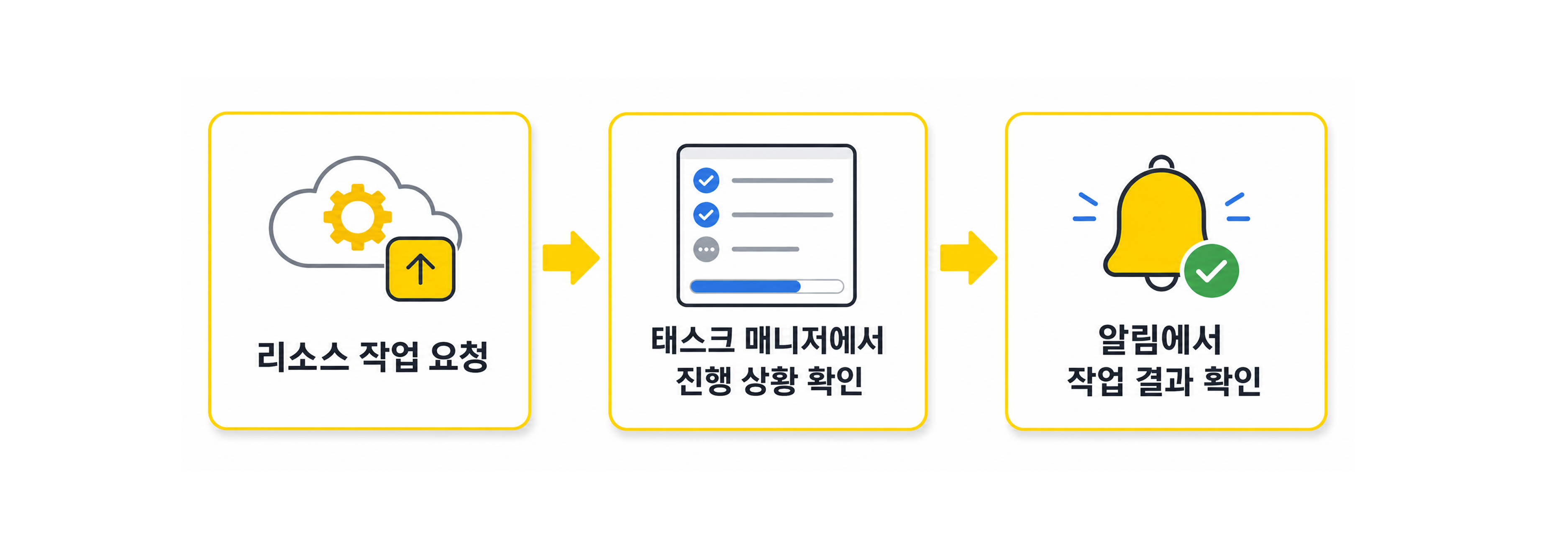
KakaoCloud resource task flowKakaoCloud resource task flow

Task Manager: View tasks in progress at a glance

After requesting a resource task, you can view its current progress and result in Task Manager. Even after moving to another service or menu, you can continue monitoring tasks that are in progress or complete. You no longer need to remain on the original page or repeatedly refresh the resource list while waiting for a result.
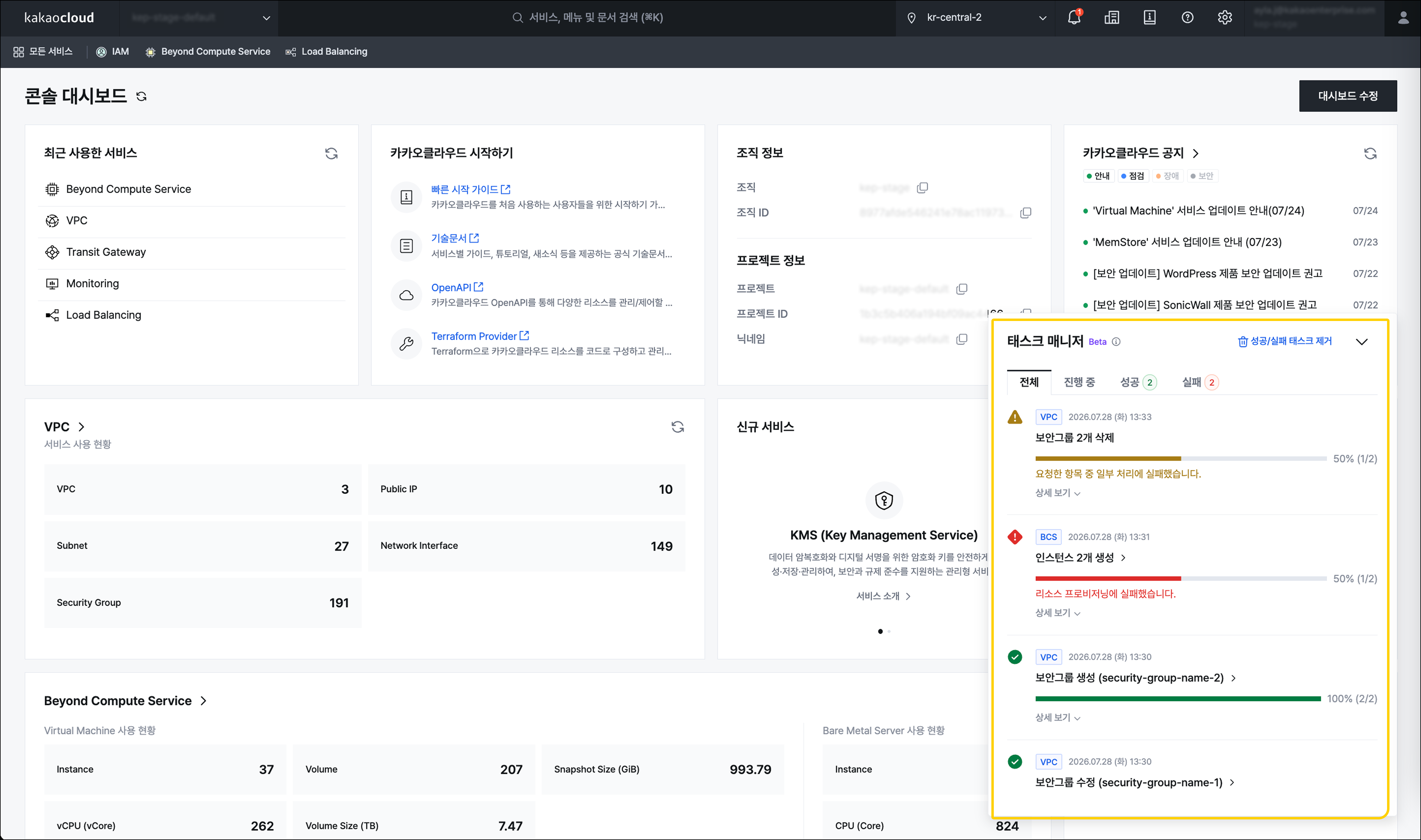
Task ManagerTask Manager

You can filter tasks by All, In progress, Succeeded, Failed, and Partially failed (partially succeeded). For tasks in progress, Task Manager displays both the completion percentage and the number of completed subtasks. Expand a task to view the status of each step and its target resources in detail.

For bulk tasks that process multiple resources at once, Task Manager shows the status of each resource individually. If part of a task fails, you can immediately identify the failed subtasks and review the error details.

After reviewing a task, you can remove individual successful or failed tasks from the list or clear all completed tasks at once. Tasks remain in the list until you remove them, so you can revisit their results whenever needed.

Task Manager is currently available in beta. It is initially supported by selected services, including Beyond Compute Service and VPC, with support expanding over time.

Notifications: View task results and console updates in one place

Notifications brings resource task results and the latest KakaoCloud console updates together in one place. When a task completes, you receive its success or failure result, allowing you to continue working on another page without missing the outcome.
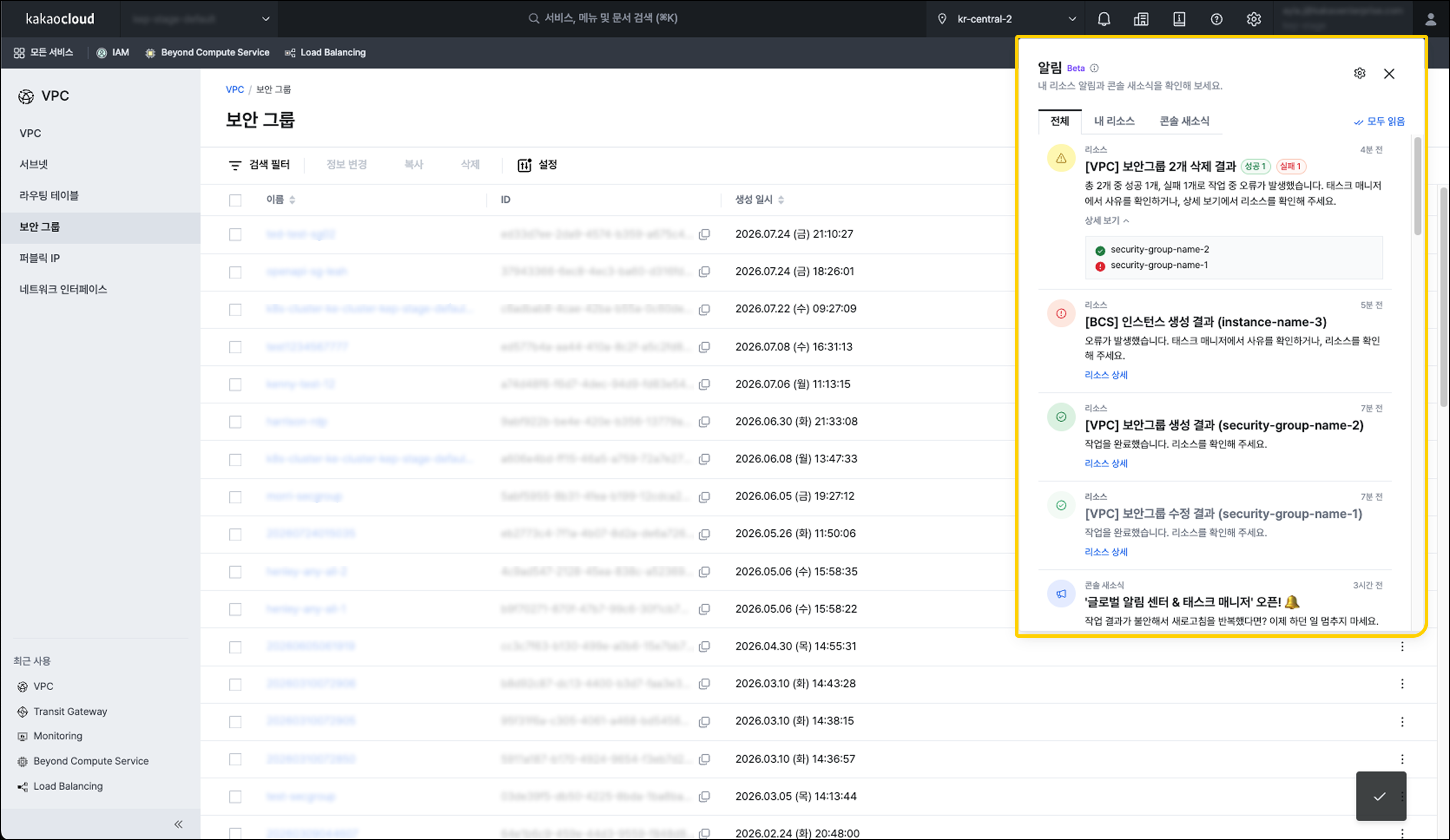
NotificationsNotifications


The notification list is divided into the All, My Resources, and Console news tabs.

  • All: View My Resources notifications and console news together
  • My Resources: View the success and failure results of resource tasks that you requested
  • Console news: View announcements about new features and major updates

My Resources notifications show the number of successful and failed items for both individual and bulk tasks. Expand the details to review the result for each target. For supported tasks, you can go directly to the corresponding resource details page. My Resources provides a seven-day notification history for the currently selected project.

New notifications are marked as unread. Select a notification to mark it as read, or select Mark all as read to clear all unread notifications at once. This makes it easy to distinguish task results and console updates that you have not yet reviewed.

Configure push notifications for your environment

Notifications offers two push notification methods for different console usage scenarios.

  • In-app push: Displays notifications in the KakaoCloud console while you are using it
  • Browser push: Displays browser notifications even when the console is running in the background

In-app push is enabled by default, while browser push must be enabled manually. Even if you turn off push notifications, task results and console updates remain in Notifications so that you can review them at any time.
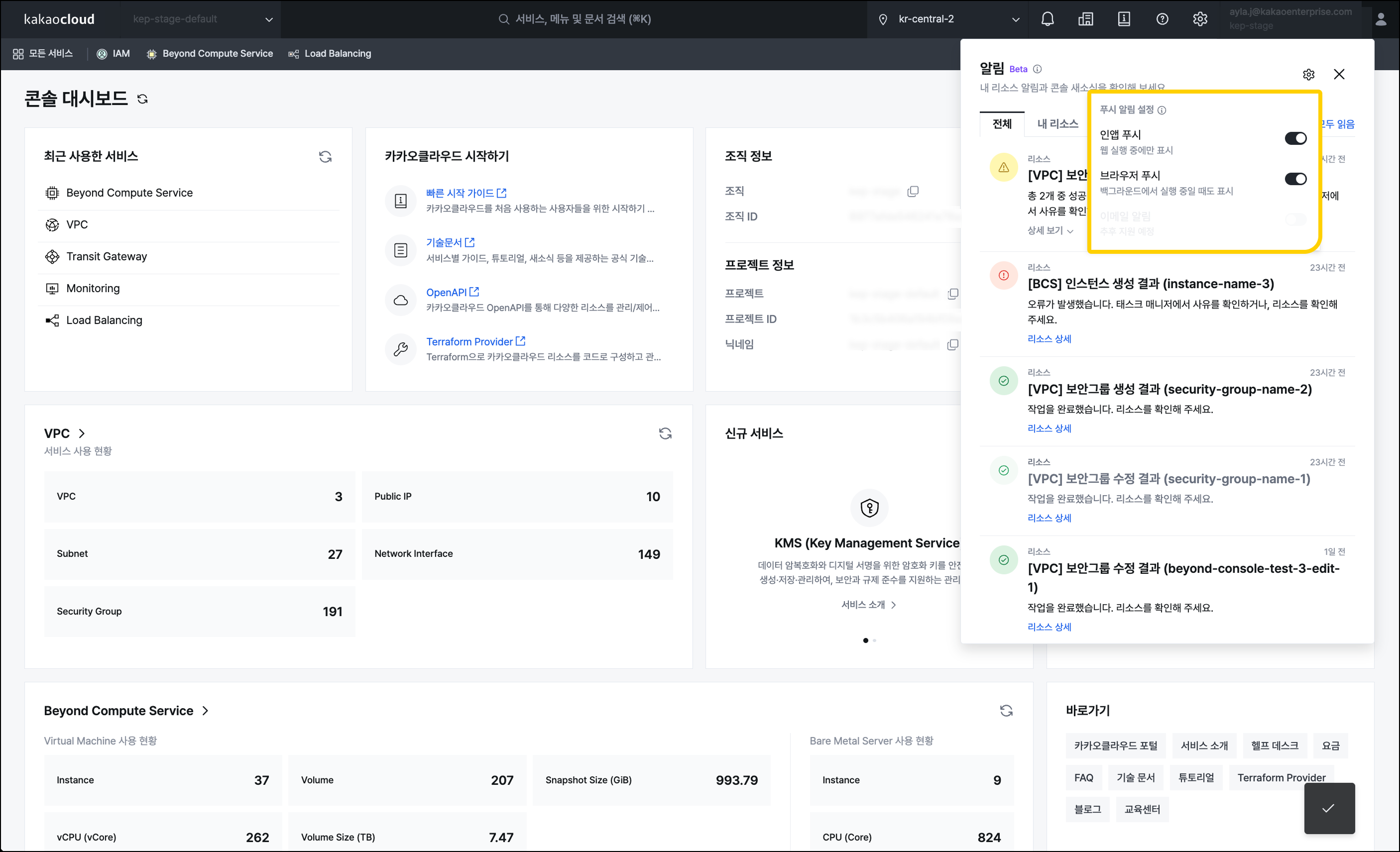
Push notification settingsPush notification settings

A connected console experience from request to result

After requesting a resource task, you can monitor its progress in Task Manager and immediately review the result through Notifications when the task is complete. If a task fails, review the error details and, when necessary, go to the relevant resource page to take follow-up action.

You no longer need to switch between service pages or repeatedly refresh resource lists to check task results. By viewing progress and results in a single workflow, you can work more efficiently even when managing multiple resources or performing several tasks at the same time.

Task Manager and Notifications are currently available in beta and initially supported by selected services, including Beyond Compute Service and VPC. Explore a more convenient resource management experience in the newly improved KakaoCloud console.

👉 Learn about the KakaoCloud console layout
👉 Get started with KakaoCloud

New KakaoCloud console released

· 8 min read
Sandy (차신영)
Technical Contents Manager
New console update

On March 13, 2026, a new console containing more than a year of intense collaboration and consideration was released. 🎉
"I want to preview as much information and as many features as possible on one screen." This one comment from a customer became the starting point for the major KakaoCloud console renewal.

This console renewal is significant because it is not simply a UI/UX redesign. It redesigned the entire KakaoCloud console, including performance structure, data processing methods, and screen design philosophy. A console that minimizes screen transitions, predicts and places needed features in advance, and reflects changes in real time is now possible in the new KakaoCloud console.

Reorganized as a data-centric console

The core of this renewal is that the new console has been reorganized based on the design principle of a data-centric console.
In the new console, information density has been precisely redesigned so operational efficiency does not decline even as service complexity increases.
Font size, letter spacing, and line height were optimized at the pixel level to remove unnecessary whitespace and create an environment where key indicators can be identified at a glance without scrolling.
In addition, rather than focusing on aesthetic design, design guidelines that prioritize data hierarchy and readability were applied so operators can maintain workflow and context among many resources.
Let's look at the major features changed in the new console.

Customizable dashboard

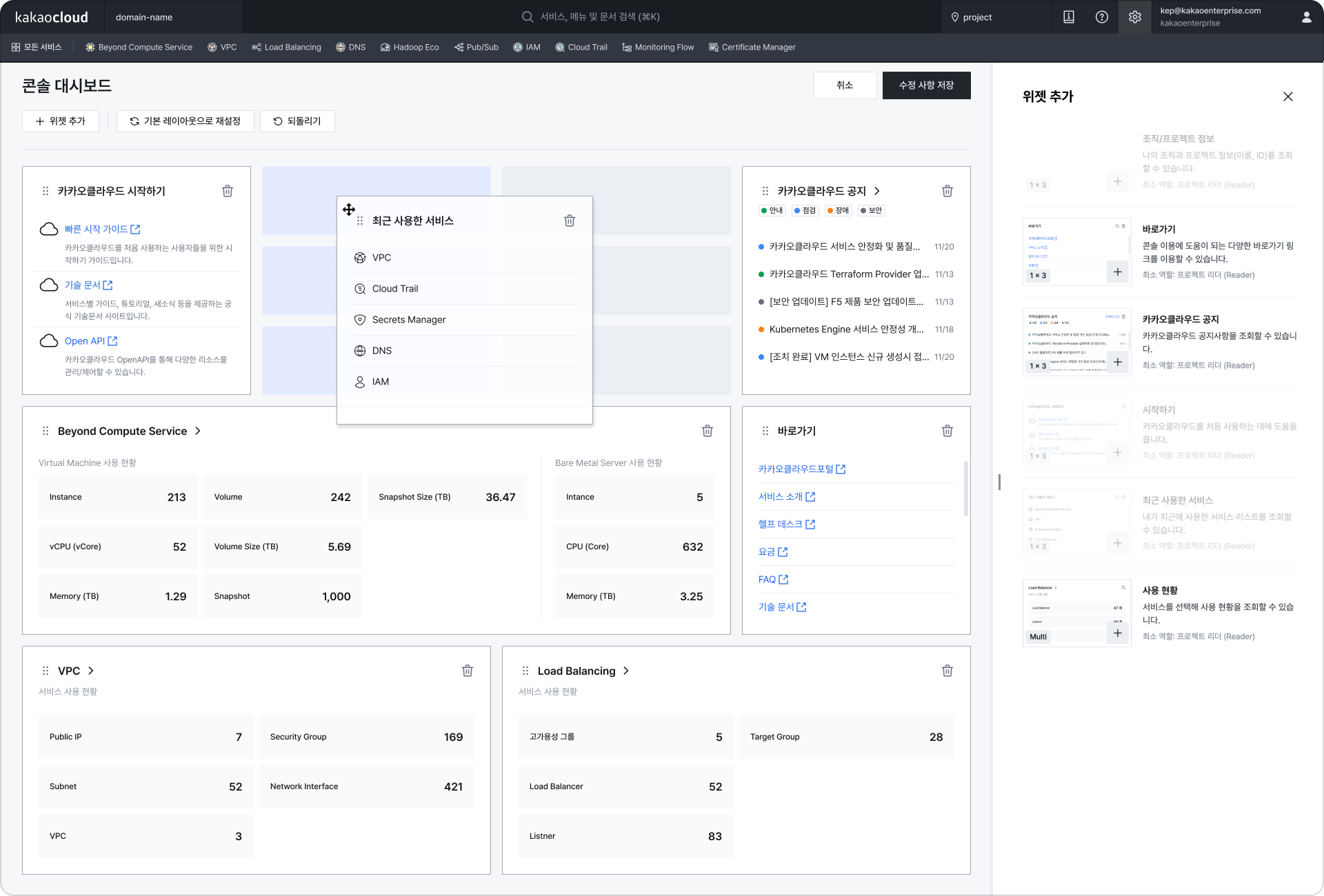
The first screen users enter after logging in to the KakaoCloud console is the dashboard. The previous dashboard provided only fixed information, making personalized configuration difficult. In the new console, the dashboard has been redesigned around widgets, allowing users to freely add, delete, or rearrange the information cards they need through drag and drop.
In particular, reflecting usage patterns of customers who use the console continuously as a monitoring screen, we completed a structure that lets users understand major service information or useful information at a glance from an operations perspective.

2 Widget-based dashboard configuration

Improved resource exploration experience

Screen convenience features for exploring resource information on one screen have also been greatly expanded.
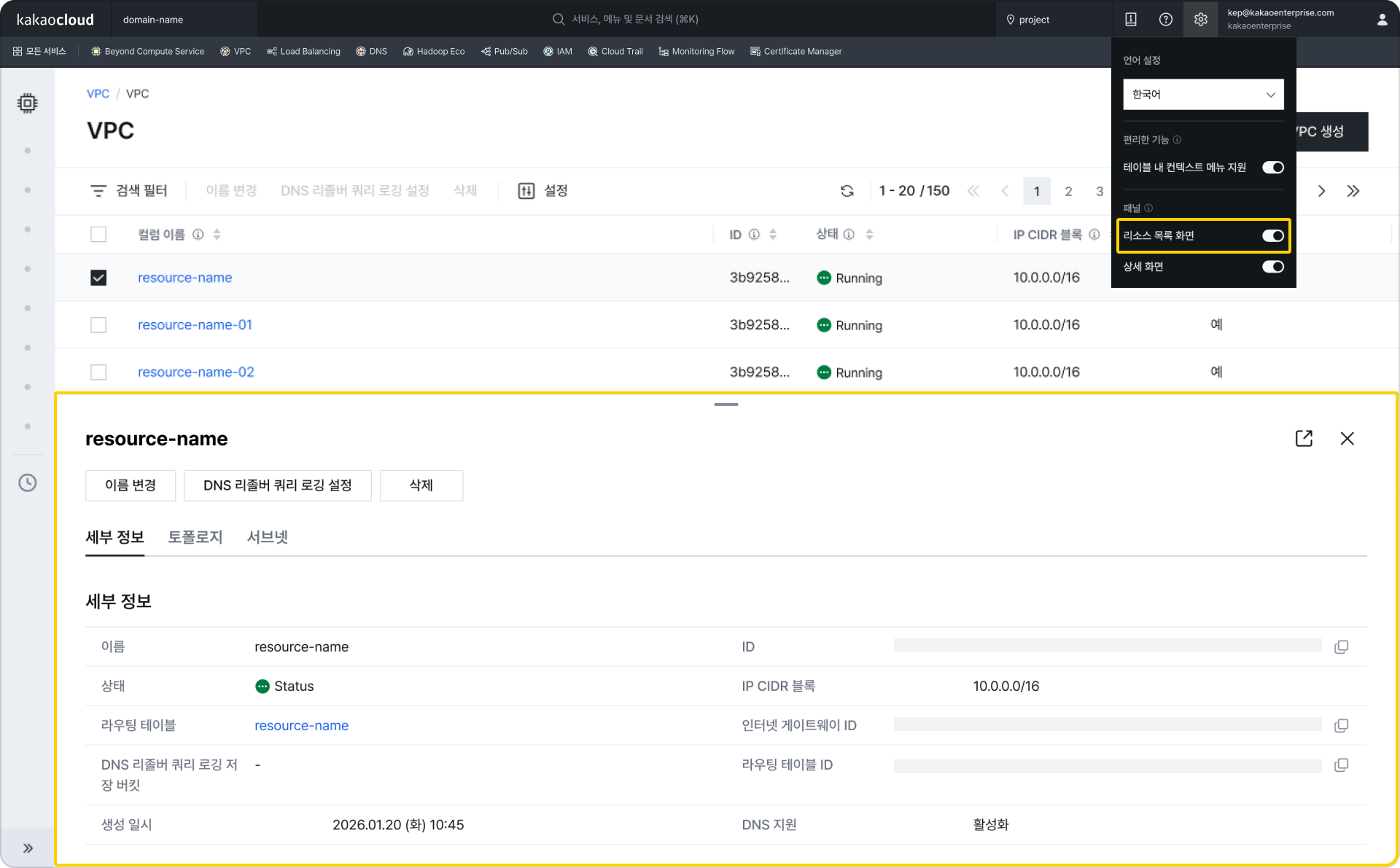
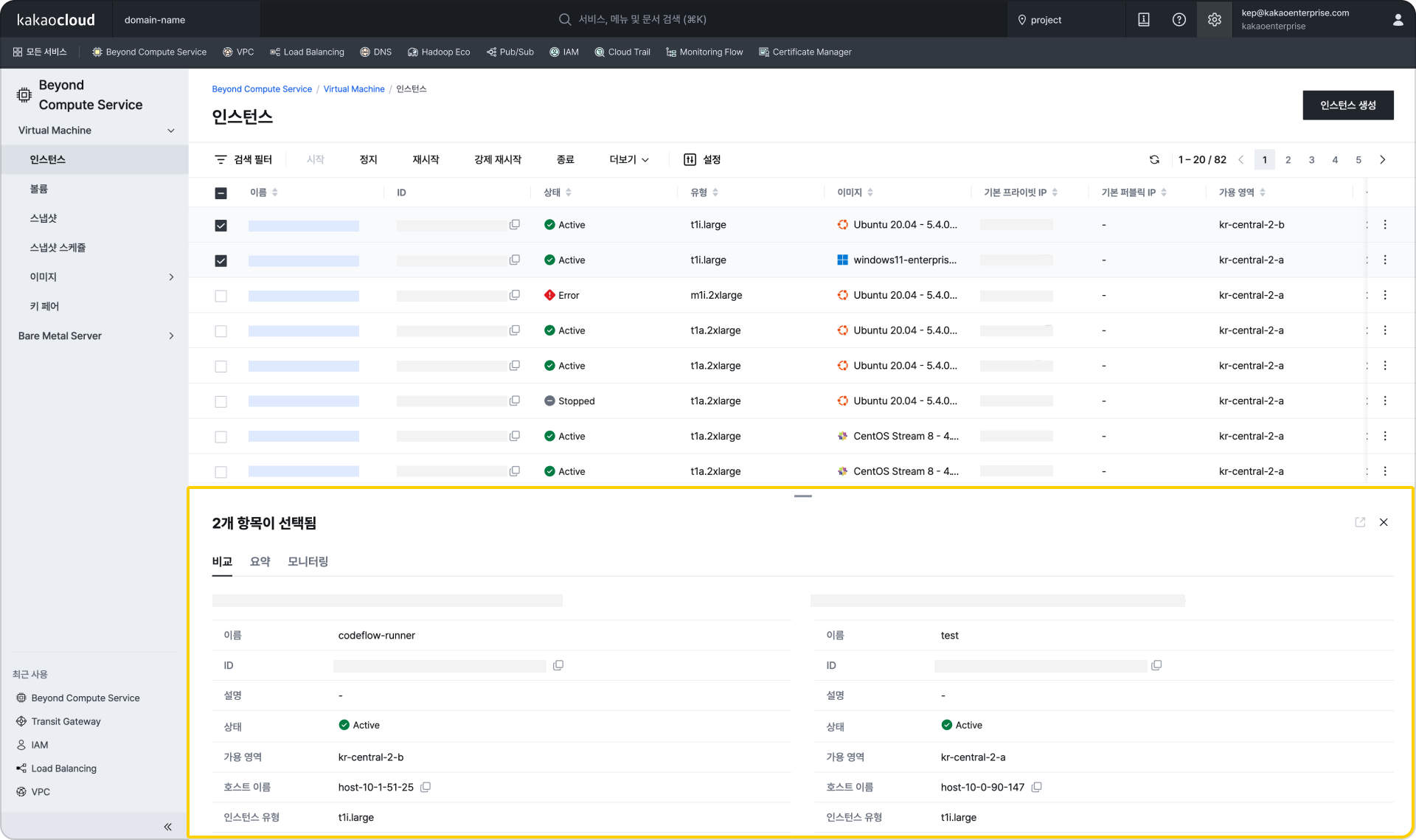
In the previous console, checking resource details required screen transitions each time a resource was selected, interrupting the workflow. In the new console, resource details can be checked immediately in the right panel or bottom panel without screen transitions.
This reduces the burden of screen transitions that occur when repeatedly exploring and checking details, and supports continuous workflows to improve operational efficiency.

3 Bottom panel display (when resource list screen option is enabled in Settings at the top right)
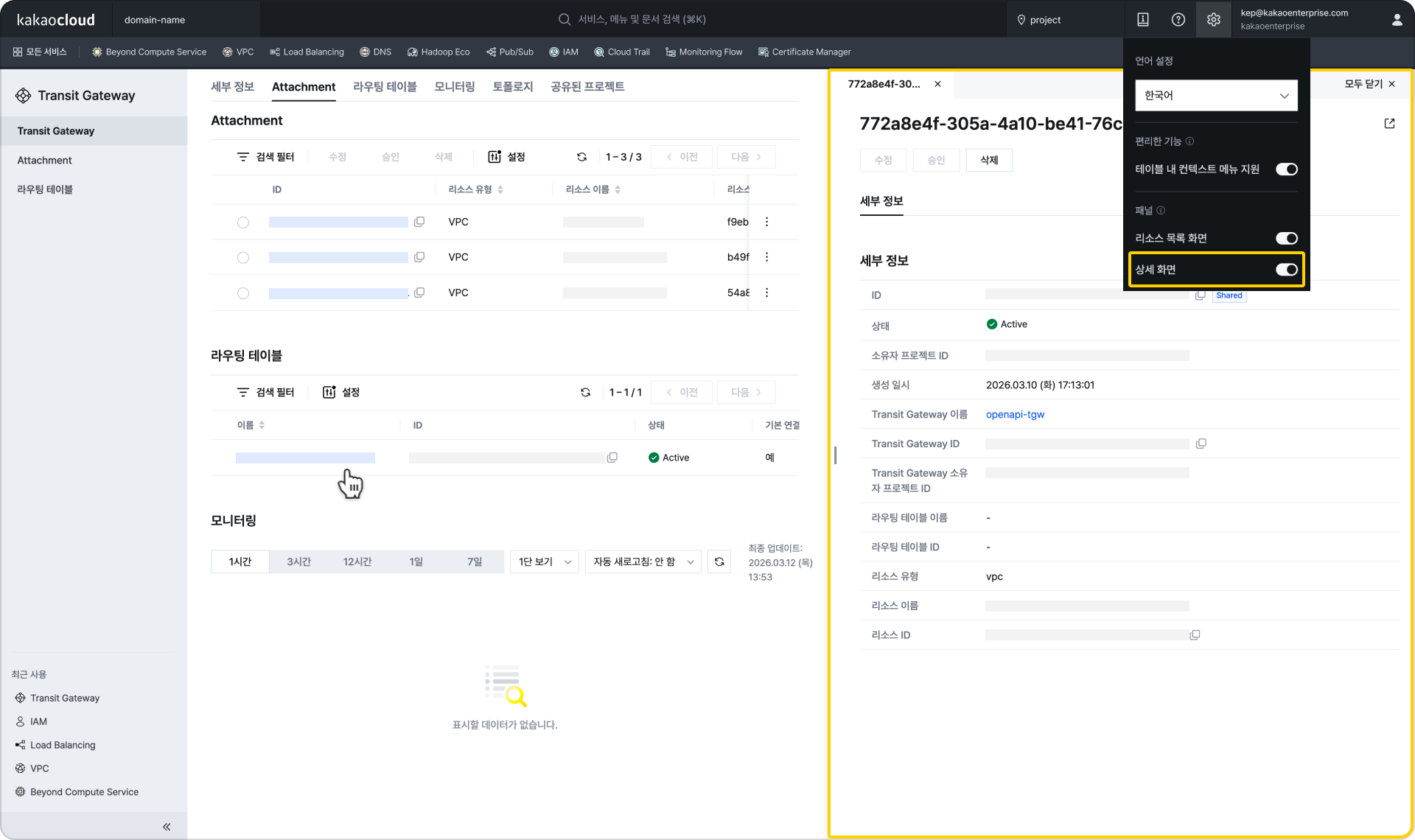
3 Right panel display (when detail screen option is enabled in Settings at the top right)
In addition, when you need to quickly compare multiple resources, you can compare and understand resource status information in the bottom panel. 3 View details in the bottom panel when two resources are selected
The resource details page viewing method has also been improved. Previously it used a tab structure with screen transitions, but the new console has changed to a full-scroll format so all information can be checked on one page. Anchor tabs are provided at the top so users can quickly move to the desired information area.

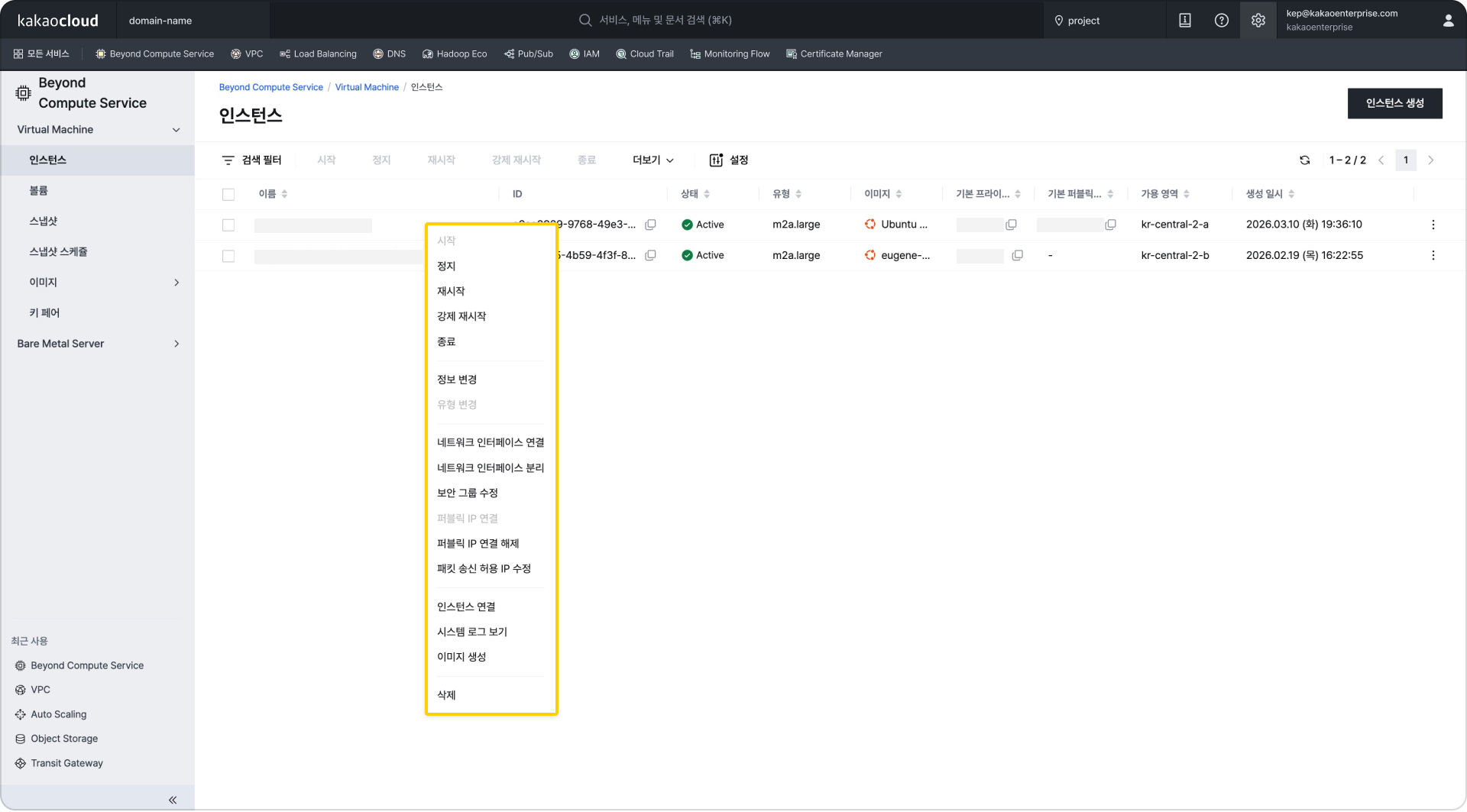
The resource task method has also become more intuitive. Previously, users had to click the More button at the far right of the table to see task menus. In the new console, users can open the same context menu directly by right-clicking the desired resource row in the table.

Image Context menu support in tables (when context menu support in tables is enabled in Settings at the top right)
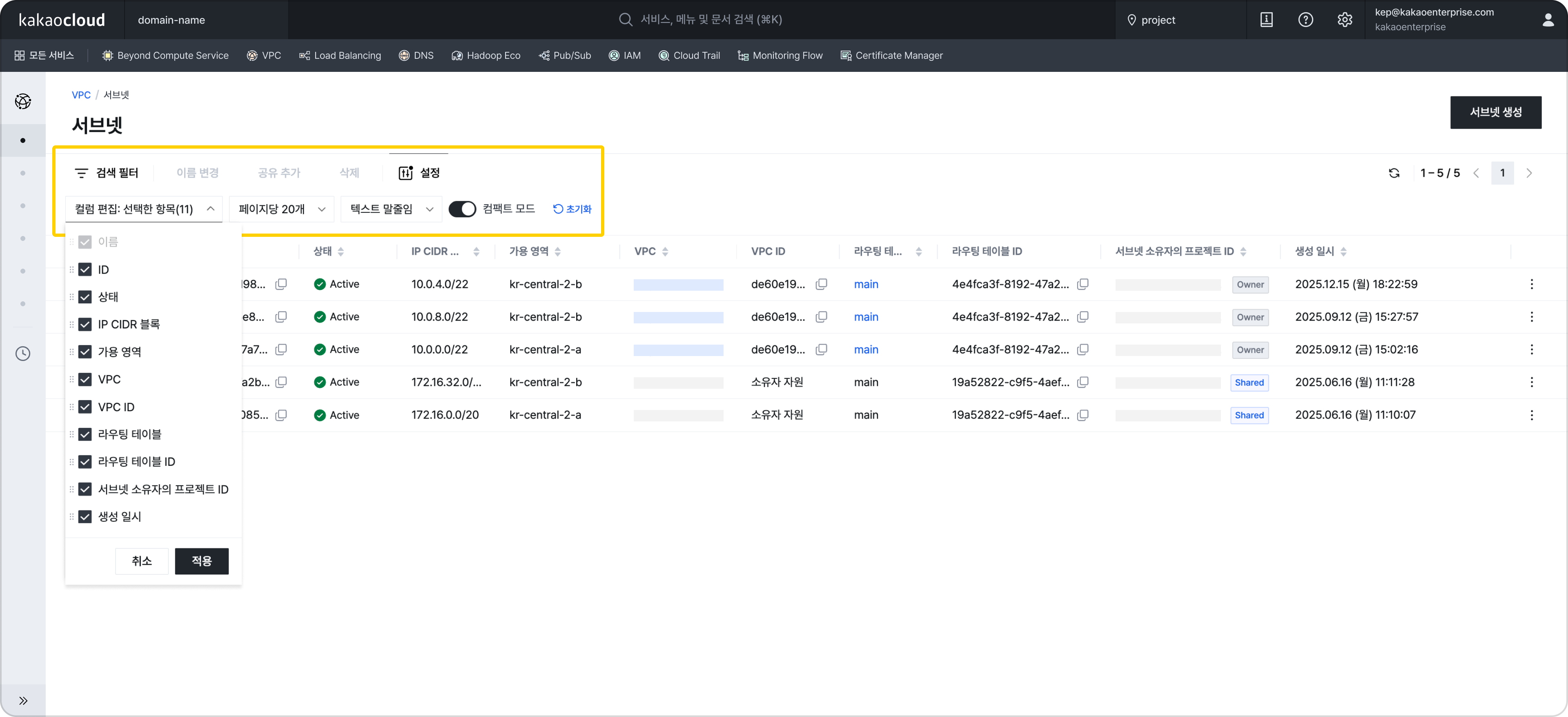
Table control features

Resource list screens support features for finely adjusting how tables are displayed. With text truncation and compact mode, more data can be displayed densely on one screen, and column configuration, header length, and width can also be adjusted.
By allowing users to directly control data density, the data-centric console philosophy has been implemented at the UI level. Beyond simple viewing, users can directly control how data is exposed, embedding the data-centric console philosophy into the UI layer.

1 Resource list screen

Intuitive topology

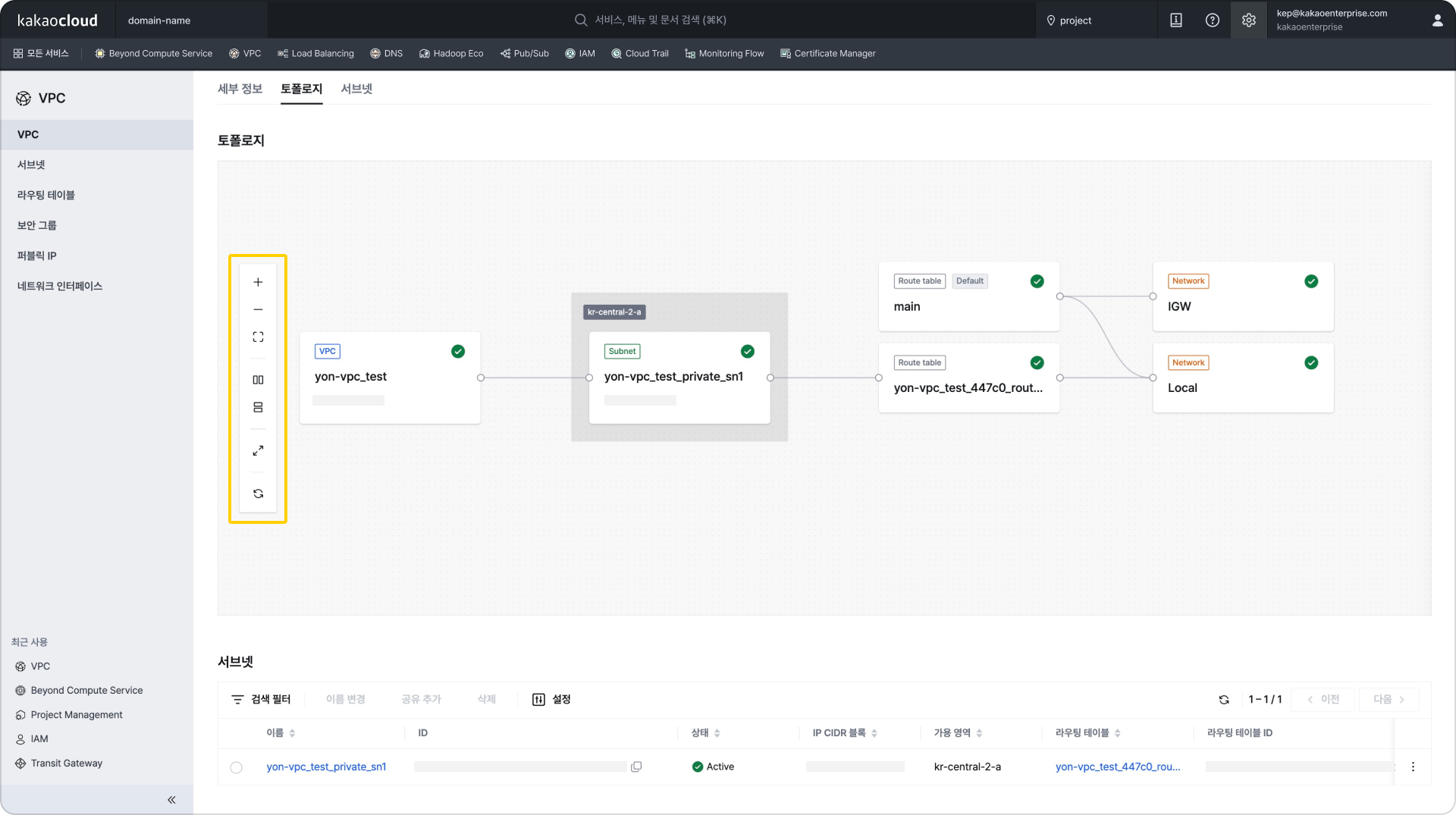
The existing topology feature has also been updated to improve the user exploration experience. When a resource card is selected in topology, details can be checked immediately in the panel without moving to another screen. Convenience features such as resource alignment and zoom in/out have also been added, and relationships between resources are expressed more intuitively so users can understand service components and resource structures at a glance.

3 Topology with zoom in/out, alignment, and other features added
Improved search and screen accessibility

Several convenience features have also been added by reflecting the actual usage patterns of users who use the console in operating environments.
For example, pressing Enter on each resource list screen now immediately opens the search filter, enabling faster search.
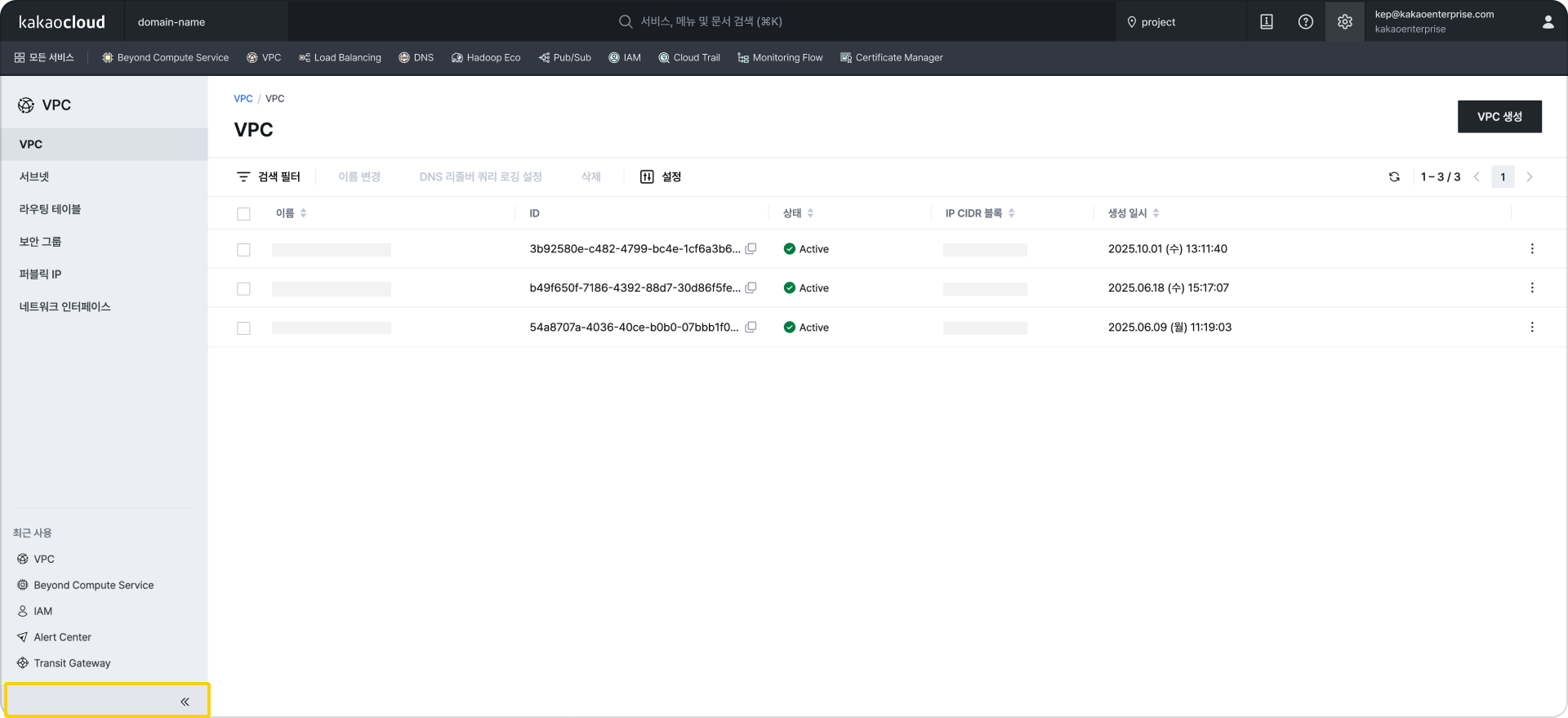
The left navigation bar (LNB) now supports collapse and expand, allowing screen space to be used more efficiently. Even on small screens or mobile environments, resource tables can be viewed more widely, improving usability in urgent response situations. Frequently used services can also be pinned to the top bar by adding them to favorites, and recently used services are displayed at the bottom left, making it easier to move between frequently used services.

3 Collapse and expand feature

Console-dedicated data architecture introduced

There were also major changes from an architecture perspective. The previous console was structured around service APIs. This was natural from a service development perspective, but in the console it created the burden of combining and processing multiple APIs to complete screens. As services and resources expanded, many API calls and real-time processing logic accumulated, and some logic became concentrated in the client or BFF (Backend for Frontend) layer. As a result, reflecting state changes also had to depend on periodic polling.

The new console improves these limitations by introducing a CDC, ETL, and SSE-based structure. Data changes are detected in real time and reflected in a console-dedicated data layer, then immediately delivered to the screen through SSE (Server-Sent Events). Read responses aim for less than one second, and resource creation and state changes are implemented to be reflected in the UI in real time.

Complex business logic is pre-transformed and stored at the ETL stage, minimizing the calculation burden during screen rendering. This lowers API dependency and provides a foundation for configuring the data needed from the console's perspective more flexibly.

Console as a platform

The new console is not simply a screen that shows multiple services in one place. It is defined as "one platform." It was designed as a platform structure so that services can continue to expand and still be accommodated stably.

A Module Federation-based structure has been introduced so that each service can participate independently, and controls have been prepared to minimize the impact of changes in one service on the entire console. This provides a foundation for adding new features faster than before. Areas shared by all services, such as common layout, authentication, navigation, and design system, are managed consistently from the center, while each service team can focus on developing business features.

This structure provides users with a consistent experience everywhere, and from an operations perspective, enables minimized change impact and gradual expansion. Update units have also become more flexible, making it easier to deploy improvements for each service independently.

The initial entry experience was also improved. SSR (Server-Side Rendering), a method where the server prepares and delivers the screen first, has been applied to reduce the loading burden users feel on first landing and let them start work faster.

Closing

The new KakaoCloud console is not simply a screen renewal. It was a change and a new challenge that redefined the role of the console through real-time data reflection, a console-dedicated data layer, data-centric UI, and modular platform architecture. Now, users can configure a console experience suited to their operating environment depending on which widgets they place on the dashboard and whether they choose compact mode or normal mode for tables. We are curious what data and what UI will be contained in your KakaoCloud console.

The March 13 release was first applied to Beyond Compute Service (Virtual Machine, Bare Metal Server), Networking (VPC, Load Balancing, DNS, Transit Gateway), and Management (IAM), and the remaining services will be converted sequentially.

KakaoCloud console will continue evolving as an operations platform designed around user experience.
Thank you.

👉 Start the new KakaoCloud console

KakaoCloud English console support is now available

· 2 min read
Mia (정혜원)
Technical Contents Manager
KakaoCloud Releases English Console

Hello, KakaoCloud users!

Today, a language setting feature has been added to the KakaoCloud console, and English console service has begun. Accordingly, English guides are also provided in the technical documentation.

Users can choose Korean, English, or the browser default option through the newly added language setting tab in the console. For details on how to select a language in the console, see the Console language setting guide. For the technical documentation, you can set your preferred language, Korean or English, through the language setting tab in the top menu.

This improvement has been applied to the main screens and services of the console. It has first been applied to Dashboard, Settings, BCS (Virtual Machine, Bare Metal Server, GPU) services, VPC, Transit Gateway, and IAM. We plan to provide multilingual support across all areas in the future with user convenience in mind.

The KakaoCloud team is pleased to be able to provide services to a broader user base through this English service. We will continue doing our best to meet the diverse needs of our users. If you need more detailed help, please contact the Helpdesk.

Thank you!