Troubleshooting instances that cannot be accessed by SSH using OpenAPI


An SSH port configuration becoming tangled while changing the port on an operating server, a forgotten password after a long period without access, or a sudden file system error that prevents booting... These are alarming situations that any cloud operator may have experienced at least once.
When the newly configured port does not work and even the existing port 22 is closed, leaving only repeated Connection refused or Connection timeout messages, the instance becomes isolated: alive, but uncontrollable.
In such a frustrating situation where the instance is in the Active state but there is no way to enter it internally, this post introduces two methods for recovery using OpenAPI while minimizing the risk of data loss, based on the troubleshooting guides in KakaoCloud technical documentation.
💡 Method 1. Automatic recovery with a user script (user_data)
This method is especially useful when "software configuration" issues occur, such as an SSH port configuration error, an unregistered SELinux policy, or a forgotten SSH password. Instead of an in-place method that attempts to fix the problem inside the affected instance, it aims for an immutable-infrastructure-based replacement method that recreates resources with a script containing normal configuration.
📍 Recovery flow
Create an image of the existing instance → Write a recovery user script → Provision a new instance with the script injected
🩺 Detailed checks and recovery procedure
Step 1. Create a snapshot: Check the existing specifications with Get instance, then create an image of the current root volume state with Create image.
- Tip: We recommend stopping the instance before proceeding so that residual data in memory can be recorded safely.
Step 2. Write a recovery script: Write a user script (user_data) that restores the port to 22 or configures a new password/key pair. This script runs when the instance first boots, and must be Base64 encoded for the API request.
Step 3. Provision the instance: Call Create instance with the recovery script attached to the image created earlier. As soon as the instance is created, the injected script runs, correcting the blocked port configuration or immediately restoring account access.
The biggest advantage of this method is that even in an "isolated situation" where an operator cannot enter the instance, settings can be automatically corrected remotely from outside. By quickly replacing the failed instance with a verified environment instead of repairing it directly, recovery time objective (RTO) can be significantly shortened.
▶︎ Troubleshooting guide for restoring access after changing the SSH port
💡 Method 2. Directly inspect the root volume
File system corruption or network configuration file errors that cannot be resolved with a user script require a more direct approach. This is a kind of rescue mode strategy in which the affected volume is temporarily treated as a "sub disk" so an engineer can directly modify its contents.
📍 Recovery flow
Create a root volume snapshot → Attach to an inspection instance → Repair data and detach → Recover with a new instance
🩺 Detailed checks and recovery procedure
Step 1. Snapshot and restore the volume: To prevent damage to the original data, create a snapshot of the affected root volume and restore a new volume based on it. This secures a safe working environment.
Step 2. Attach the inspection volume: Designate another normally operating instance as the "rescue" instance, and attach the restored volume to that instance.
Step 3. Mount and repair data: Mount the volume on the inspection instance and directly fix the problem area. Key checks and actions include the following.
- Network: Immediately fix typos or configuration errors in files under
/etc/netplanor/etc/sysconfig/network-scripts. - File system: After unmounting, check and repair disk errors with commands such as
xfs_repairorfsck. There may be various other causes depending on system logs and configuration environments, so detailed diagnosis is required.
Step 4. Create an image and provision: After solving the problem, detach the volume, then create a new image based on that volume. Finally, deploy a normalized new instance using this image to complete recovery.
The core of this method is to use the environment of a normal instance to directly fix the problematic parts, such as the file system and network settings, instead of forcibly recovering the failed instance. After all fixes are complete, the volume is converted back into an image and redeployed as a new instance with the defects resolved.
▶︎ Troubleshooting guide for instance recovery through root volume inspection
📝 Recovery golden rules operators should remember
The core of recovery that operators should learn in practice goes beyond simply using individual features. It is about structurally preparing a system-level recovery framework. Above all, by using a cloud-based flow that connects image creation, configuration correction, and redeployment, you can secure a recovery path even when access is blocked.
In this process, data protection is the basic premise. Making it a habit to stop the instance and create a snapshot before recovery work can minimize the risk of data loss. After recovery is complete, it is also advisable to clean up temporary snapshots, restored volumes, and existing instances to avoid unnecessary costs.
Failures occur without warning, but recovery procedures can be prepared in advance. By using KakaoCloud troubleshooting guides together with OpenAPI, you can secure reproducible recovery paths for most access failure situations. Refer to the technical documentation now and review automated recovery scenarios suitable for your infrastructure environment.

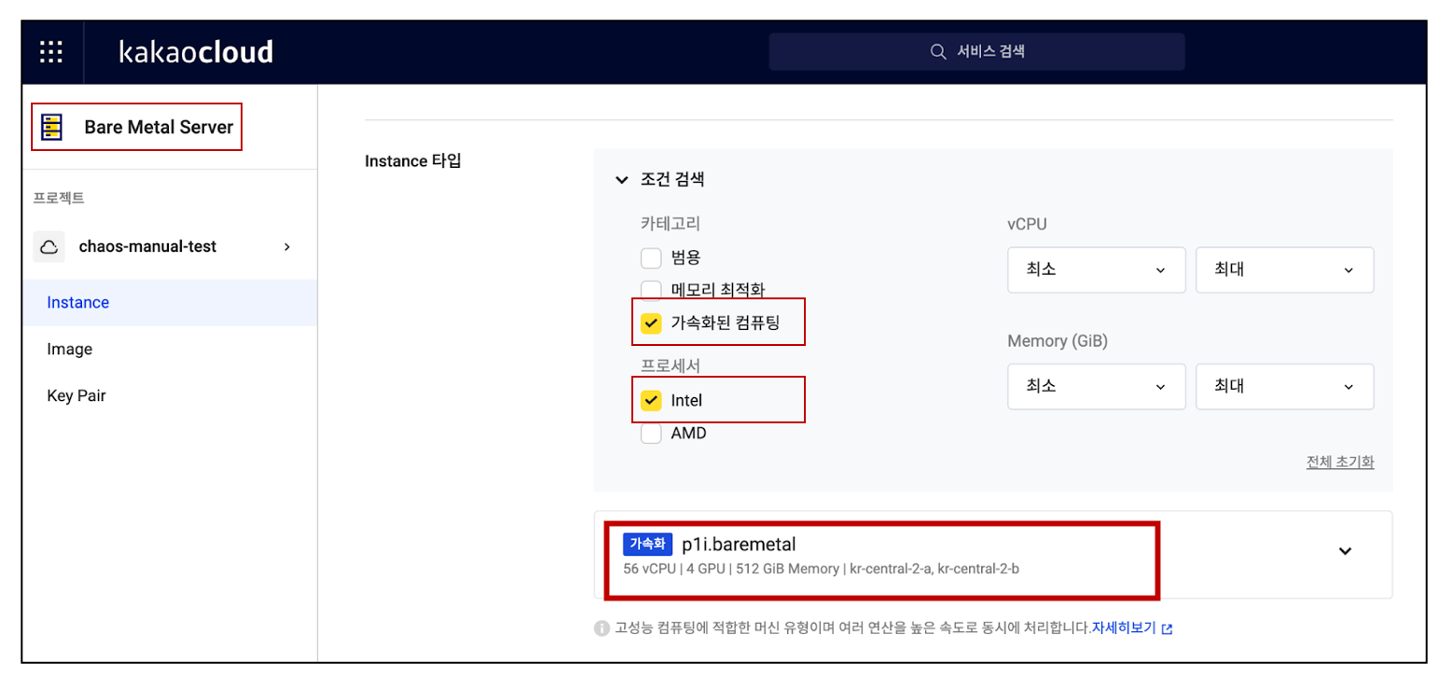 Selecting a
 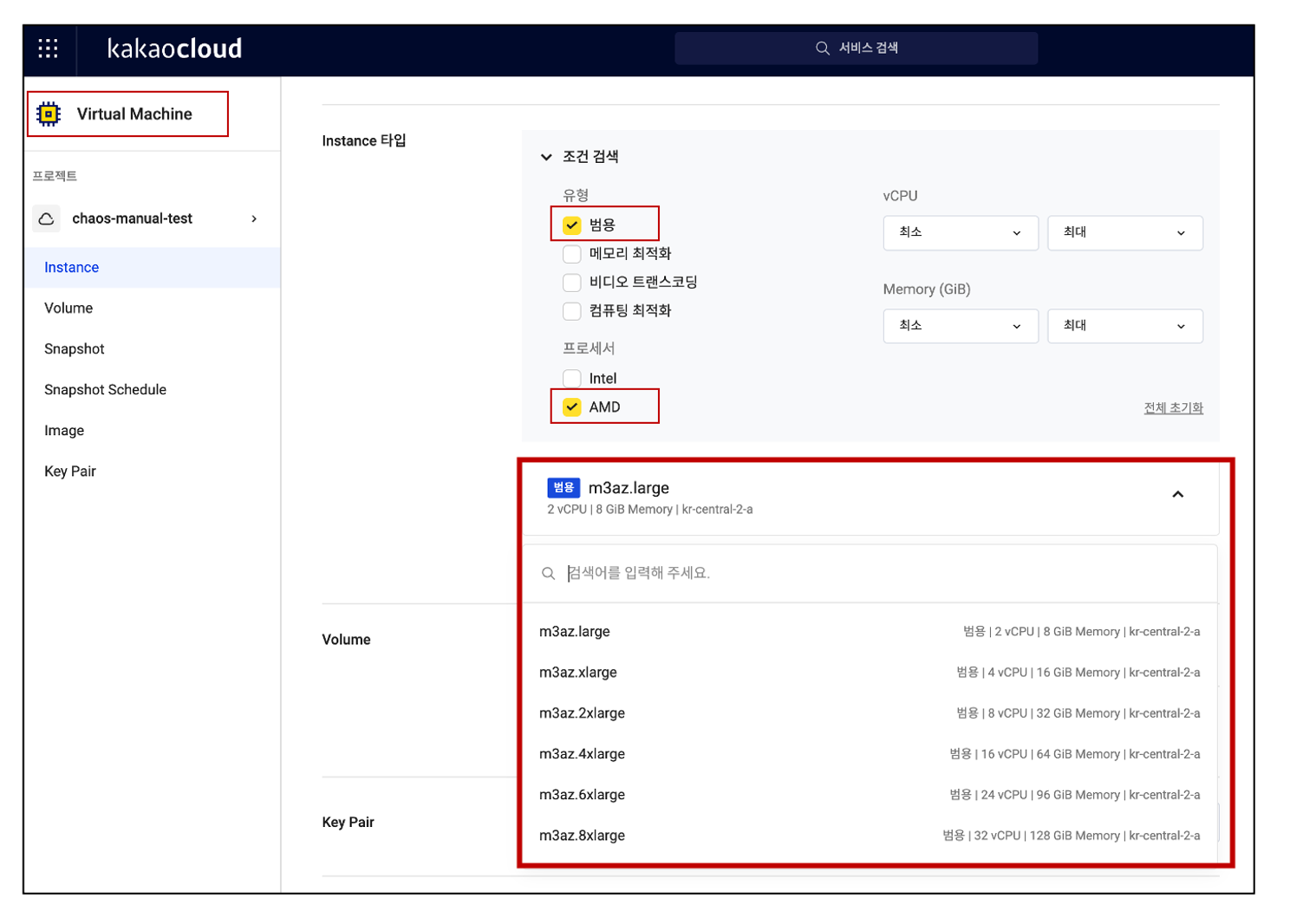 Selecting an