Create and manage Transit Gateway
A Transit Gateway is a centralized network transit hub that enables you to connect multiple VPCs (Virtual Private Clouds) and on-premises networks easily and flexibly. It supports multi-availability zone functionality, a key technology for improving application fault tolerance and availability, so you can prepare for disaster recovery and improve overall system availability.
- Creating, viewing, changing settings for, and deleting a Transit Gateway require Project administrator permissions.
- Some features may be restricted for shared Transit Gateways. For more information, see Share Transit Gateway.
Create Transit Gateway
The following describes how to create a Transit Gateway.
-
Go to KakaoCloud console > Networking > Transit Gateway.
-
Click the Transit Gateway menu on the left, and then click the [Create Transit Gateway] button.
-
Enter the basic information for the Transit Gateway to create, and then click the [Create] button.
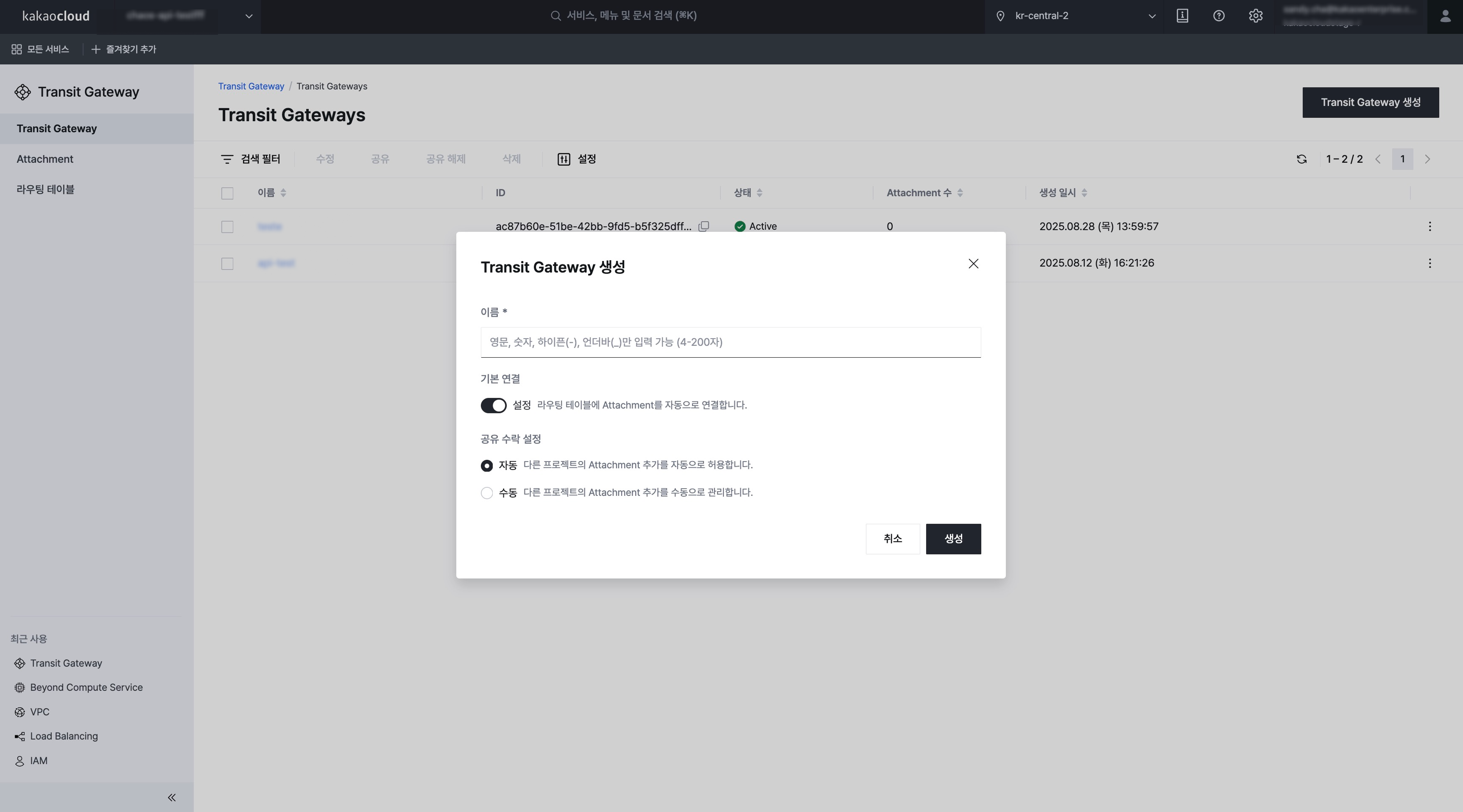 Configure basic Transit Gateway information
Category Description Name Name of the Transit Gateway Default association Select whether to enable the default association Share acceptance setting Select whether to automatically accept attachments created by other projects
Manage Transit Gateway
The following describes how to manage a Transit Gateway.
View Transit Gateway list and basic information
You can view the list of created Transit Gateways and their basic information.
-
Go to KakaoCloud console > Networking > Transit Gateway.
-
In the Transit Gateway menu on the left, view the list of currently created Transit Gateways and their basic information.
Category Description Name Name of the Transit Gateway ID UUID of the Transit Gateway Status Status of the Transit Gateway
-Creating: Transit Gateway is being created
-Updating: Transit Gateway is being updated
-Deleting: Transit Gateway is being deleted
-Active: Transit Gateway provisioning succeededNumber of attachments Attachment information connected to the Transit Gateway Created at Date when the Transit Gateway was created
View Transit Gateway details
You can view detailed information about the Transit Gateway.
-
Go to KakaoCloud console > Networking > Transit Gateway.
-
Select a Transit Gateway from the Transit Gateway menu on the left.
-
Check the information on each tab.
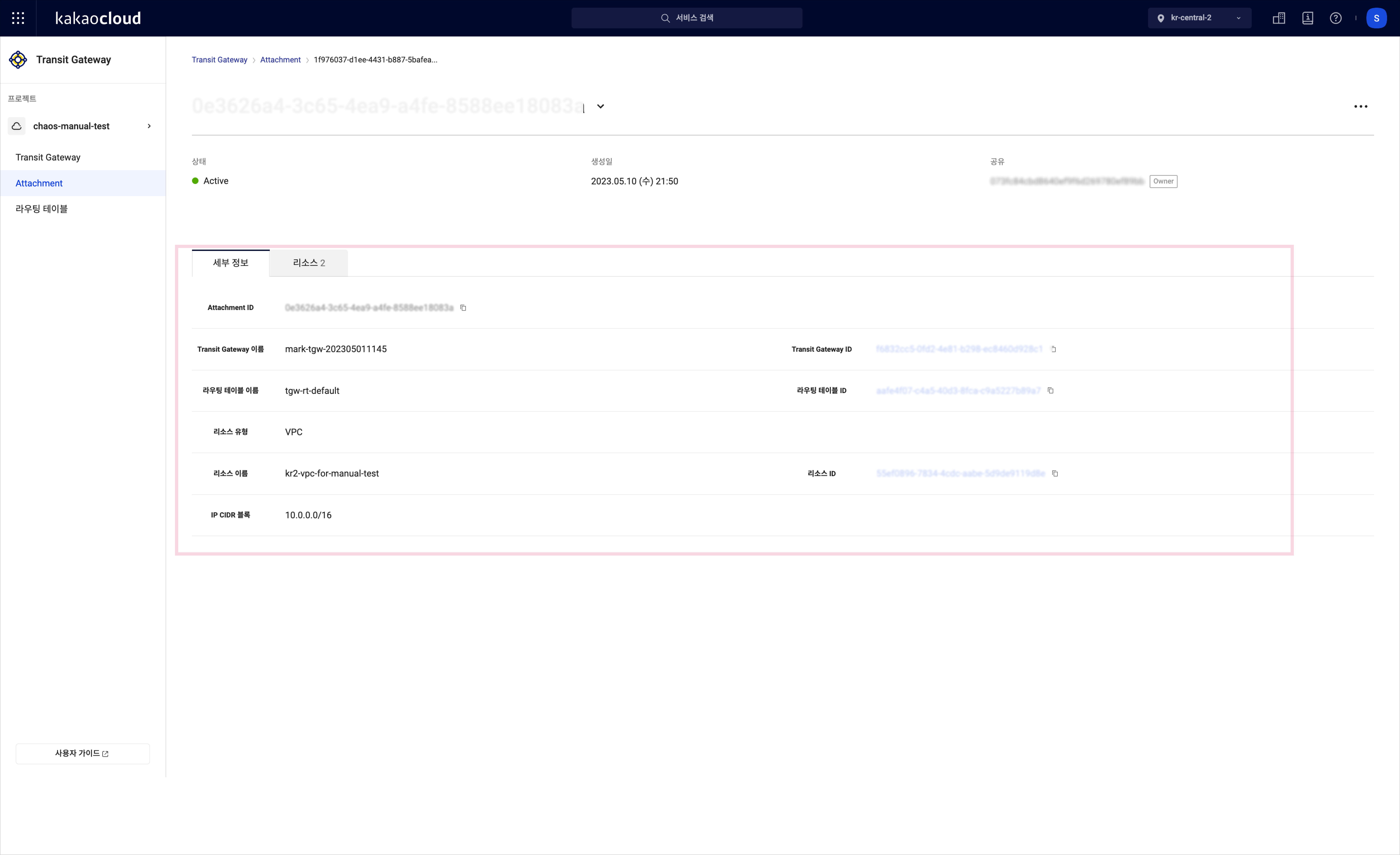 Details tab
- Details tab
- Attachment tab
- Route table tab
- Monitoring tab
- Topology tab
- Shared projects tab
You can view the basic information of the Transit Gateway.
Item Description Name User-defined name used to identify the Transit Gateway ID Unique identifier automatically assigned when the Transit Gateway is created Status Current operating status of the Transit Gateway Owner project ID UUID of the owner project that created the Transit Gateway Default association Whether the default VPC association is enabled Default association route table ID of the route table automatically associated with the default association Share acceptance setting Whether to automatically accept attachments created by other projects Created at Date and time when the Transit Gateway was created You can view attachment information connected to the Transit Gateway.
Category Description ID Unique identifier of the attachment Name Name of the attachment (optional) Resource type Type of connected resource (for example, VPC, VPN) Resource name Name of the connected resource Resource ID Unique identifier of the connected resource Status Current status of the attachment Owner project ID UUID of the project that created the attachment You can view route table information connected to the Transit Gateway.
Category Description Name Name of the route table connected to the Transit Gateway ID ID of the route table connected to the Transit Gateway Status Current status of the route table Default association Whether the default association is enabled You can view monitoring information such as traffic and resource status through the metrics provided in the console.
You can visually check the network configuration between the Transit Gateway and connected resources.
You can view information about projects with which the Transit Gateway is shared.
Category Description Name Name of the project with which the Transit Gateway is shared ID ID of the project with which the Transit Gateway is shared Description Description of the project
Rename Transit Gateway
You can change the name of the Transit Gateway.
- Go to KakaoCloud console > Networking > Transit Gateway.
- In the Transit Gateway menu on the left, select [⋮] > Modify for the target Transit Gateway.
- Modify the name of the Transit Gateway in the pop-up window, and then click the [Save] button.
Modify Transit Gateway share acceptance setting
The following describes how to modify the share acceptance setting of a Transit Gateway.
- Go to KakaoCloud console > Networking > Transit Gateway.
- In the Transit Gateway menu on the left, select [⋮] > Modify for the target Transit Gateway.
- Change the setting in the pop-up window, and then click the [Save] button.
Share Transit Gateway
The following describes how to share a Transit Gateway.
- Go to KakaoCloud console > Networking > Transit Gateway.
- In the Transit Gateway menu on the left, select [⋮] > Share for the target Transit Gateway.
- Enter the project ID to share with in the pop-up window, and then click the [OK] button.
- You can check the project ID in Organization information at the top of the KakaoCloud console main page
Unshare Transit Gateway
The following describes how to unshare a Transit Gateway.
- To unshare a Transit Gateway, you must first delete all attachments created in that project.
- Go to KakaoCloud console > Networking > Transit Gateway.
- In the Transit Gateway menu on the left, select [⋮] > Unshare for the target Transit Gateway.
- Enter the ID of the project to unshare in the pop-up window, and then click the [Unshare] button.
- You can check the project ID in Organization information at the top of the KakaoCloud console main page
Delete Transit Gateway
The following describes how to delete a Transit Gateway.
To delete a Transit Gateway, you must first delete all connected attachments.
- Go to KakaoCloud console > Networking > Transit Gateway.
- In the Transit Gateway menu on the left, select [⋮] > Delete for the target Transit Gateway.
- Enter the name of the Transit Gateway in the pop-up window, and then click the [Delete] button.
Manage shared projects
Unshare project
The following describes how to unshare a project.
To unshare a project, you must first delete all Transit Gateway attachments created in that project.
- Go to KakaoCloud console > Networking > Transit Gateway.
- In the Transit Gateway menu on the left, select [⋮] > Unshare for the target Transit Gateway.
- Select the selected project in the pop-up window, and then click the [Unshare] button.