Create and manage attachments
An attachment is a connection unit in a Transit Gateway that represents the source or destination of traffic. You can select subnets by availability zone within a VPC to support a multi-AZ high-availability configuration.
After creating a Transit Gateway attachment and associating it with a route table, you can centrally control the traffic for that route.
Creating, viewing, configuring, approving, rejecting, and deleting attachments require Project administrator permissions.
Create attachment
The following describes how to create an attachment.
-
Go to KakaoCloud console > Networking > Transit Gateway.
-
Click the Attachment menu on the left, and then click the [Create attachment] button.
-
Enter the basic information for the attachment to create, and then click the [Create] button.
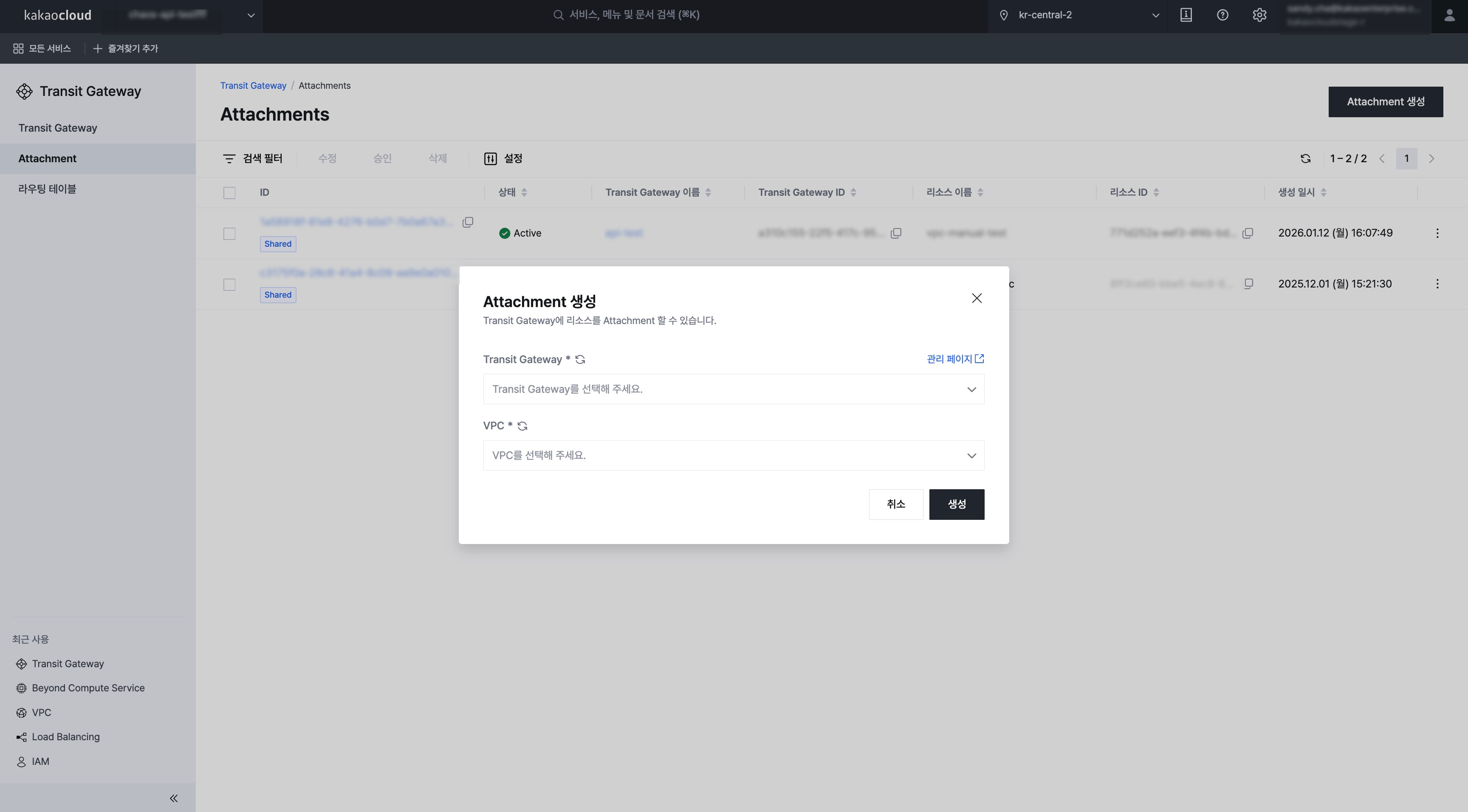 Create attachment
Category Description Transit Gateway Transit Gateway to connect VPC VPC to attach to the Transit Gateway
Manage attachments
The following describes how to manage attachments.
View attachment list and basic information
You can view the list of created attachments and their basic information.
-
Go to KakaoCloud console > Networking > Transit Gateway.
-
In the Attachment menu on the left, view the currently created attachments.
Category Description ID Unique ID of the attachment Name Name of the attachment Status Status of the attachment
-Creating: Attachment is being created
-Pending Approve: Waiting for approval
-Updating: Attachment is being updated
-Deleting: Attachment is being deleted
-Active: Attachment provisioning succeeded
-Error: Attachment error occurredTransit Gateway name Name of the Transit Gateway Transit Gateway ID Unique ID of the Transit Gateway Resource name Name of the resource connected to the attachment Resource ID Unique ID of the resource connected to the attachment Created at Date when the attachment was created
View attachment details
You can view detailed information about the attachment.
-
Go to KakaoCloud console > Networking > Transit Gateway.
-
Select the target attachment from the Attachment menu on the left.
-
Check the information of the attachment on each tab.
- Details tab
- Resource tab
Item Description ID Unique identifier of the attachment Name Name of the attachment Status Current status information of the attachment Owner project ID Unique identifier of the project that created the attachment Transit Gateway name Name of the connected Transit Gateway Transit Gateway ID Unique identifier of the connected Transit Gateway Transit Gateway owner project ID Unique identifier of the project that owns the Transit Gateway Route table name Name of the route table connected to the attachment Route table ID Unique identifier of the route table connected to the attachment Connection type Type of resource connected to the Transit Gateway Connected resource name Name of the connected resource Resource ID Unique identifier of the connected resource Created at Date and time when the attachment was created Category Description VPC name Name of the VPC connected through the attachment VPC ID Unique ID of the VPC connected through the attachment Subnet name Name of the subnet selected when creating the attachment Subnet ID Unique ID of the subnet connected to the attachment Status Current status of the subnet connected to the attachment IP CIDR block IP address range (CIDR) assigned to the connected subnet Availability zone Availability Zone (AZ) where the connected subnet is deployed info- The Transit Gateway owner cannot view resource information in the attachment details created by a participant.
Modify attachment subnet settings
The following describes how to modify the subnet settings of an attachment.
- Go to KakaoCloud console > Networking > Transit Gateway.
- In the Attachment menu on the left, select [⋮] > Modify for the target attachment.
- Modify the subnet settings in the pop-up window, and then click the [Save] button.
Approve attachment
The following describes how to approve an attachment connection request.
The [Approve] button is displayed only when the Transit Gateway share acceptance setting is Manual and an attachment created by another project is in the Pending Approve state.
- Go to KakaoCloud console > Networking > Transit Gateway.
- In the Attachment menu, select [⋮] > Approve for the target attachment.
- Click the [Approve] button in the pop-up window.
Reject attachment
The following describes how to reject an attachment connection request.
The [Reject] button is displayed only when the Transit Gateway share acceptance setting is Manual and an attachment created by another project is in the Pending Approve state.
- Go to KakaoCloud console > Networking > Transit Gateway.
- In the Attachment menu, select [⋮] > Reject for the target attachment.
- Click the [Reject] button in the pop-up window.
Delete attachment
The following describes how to delete an attachment.
- Go to KakaoCloud console > Networking > Transit Gateway.
- In the Attachment menu, select [⋮] > Delete for the attachment to delete.
- Enter the delete confirmation text in the pop-up window, and then click the [Delete] button.