Create and manage route tables
Creating and managing route tables (view, configure, and delete) require Project administrator permissions.
Create route table
The following describes how to create a route table in the Transit Gateway service.
-
Go to KakaoCloud console > Networking > Transit Gateway.
-
In the Route table menu on the left, click the [Create route table] button.
-
Enter the information for the route table to create, and then click the [Create] button.
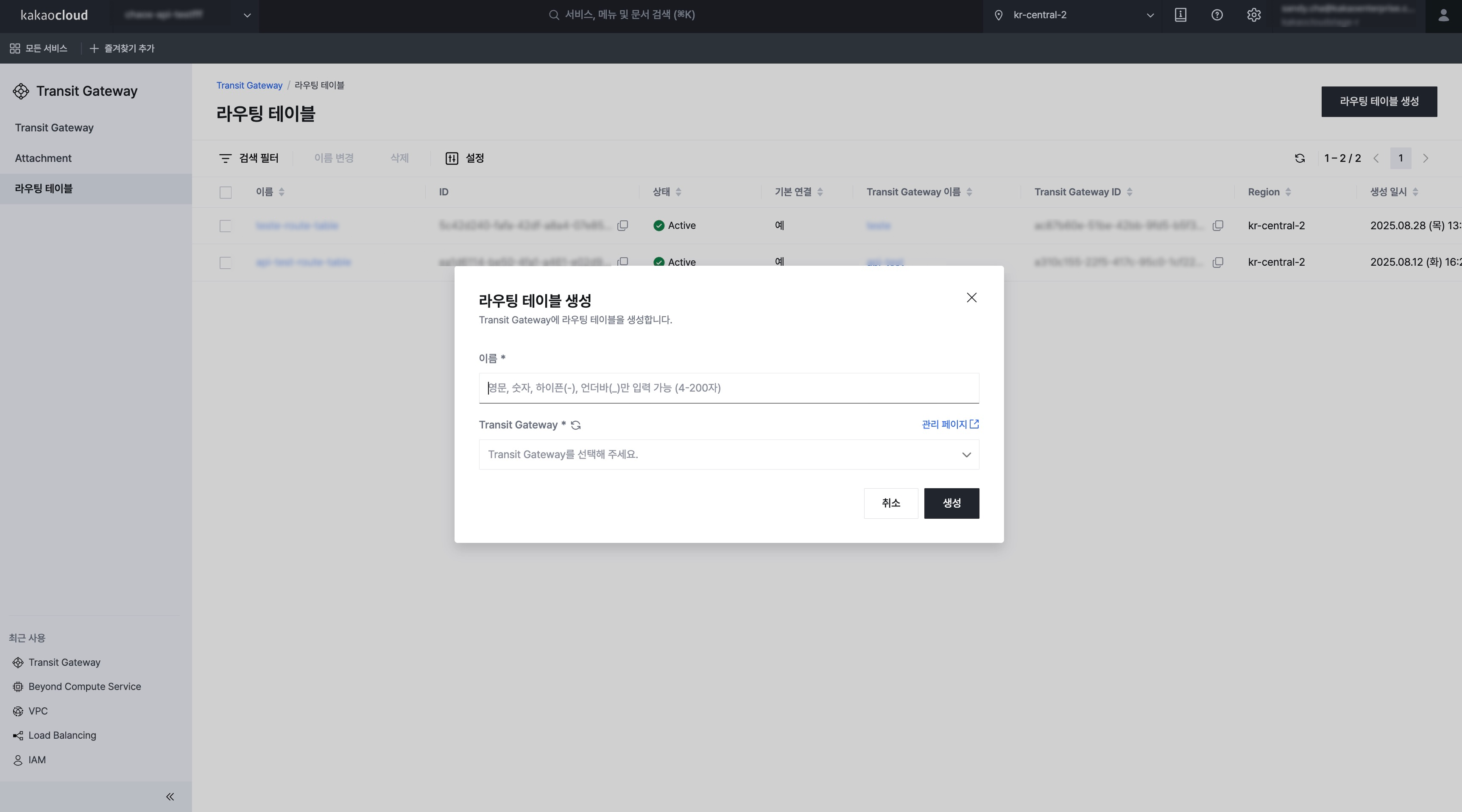 Configure basic route table information
Category Description Name Enter the name of the route table Transit Gateway Select the Transit Gateway to connect
-Owner: Transit Gateway created by the user
-Shared: Transit Gateway shared with the user
Manage route tables
The following describes how to manage route tables in the Transit Gateway service.
View route table list and basic information
You can view the list of created route tables and their basic information.
-
Go to KakaoCloud console > Networking > Transit Gateway.
-
In the Route table menu, view the list of currently created route tables.
Category Description Name Name of the route table ID Unique ID of the route table Status Status of the route table
-Creating: Route table is being created
-Updating: Route table is being updated
-Deleting: Route table is being deleted
-Active: Route table provisioning succeeded
-Error: Route table error occurredDefault association Whether the route table is the default association Transit Gateway name Name of the Transit Gateway Transit Gateway ID Unique ID of the Transit Gateway Availability zone Availability zone where the route table is applied Created at Date when the route table was created [⋮] button Provides the following functions
- Rename: Change route table name
- Delete: Delete route table
View route table details
You can view detailed information about the route table.
-
Go to KakaoCloud console > Networking > Transit Gateway.
-
Select a route table from the Route table menu.
-
Check the information in the Details tab.
Item Description Name User-defined name used to identify the route table ID Unique ID of the route table Status Current operating status of the route table Default association Whether the route table is the default route table of the Transit Gateway Transit Gateway Name of the Transit Gateway connected to the route table Created at Date and time when the route table was created
Delete route table
The following describes how to delete a route table.
Before deleting a route table, remove all associated connections.
- Go to KakaoCloud console > Networking > Transit Gateway.
- In the Route table menu on the left, select [⋮] > Delete for the route table to delete.
- Enter the delete confirmation text in the pop-up window, and then click the [Delete] button.
View connection details
You can view connection information.
-
Go to KakaoCloud console > Networking > Transit Gateway.
-
Select the route table for which you want to view detailed information in the Route table menu.
-
In the Connections tab, check the connection information.
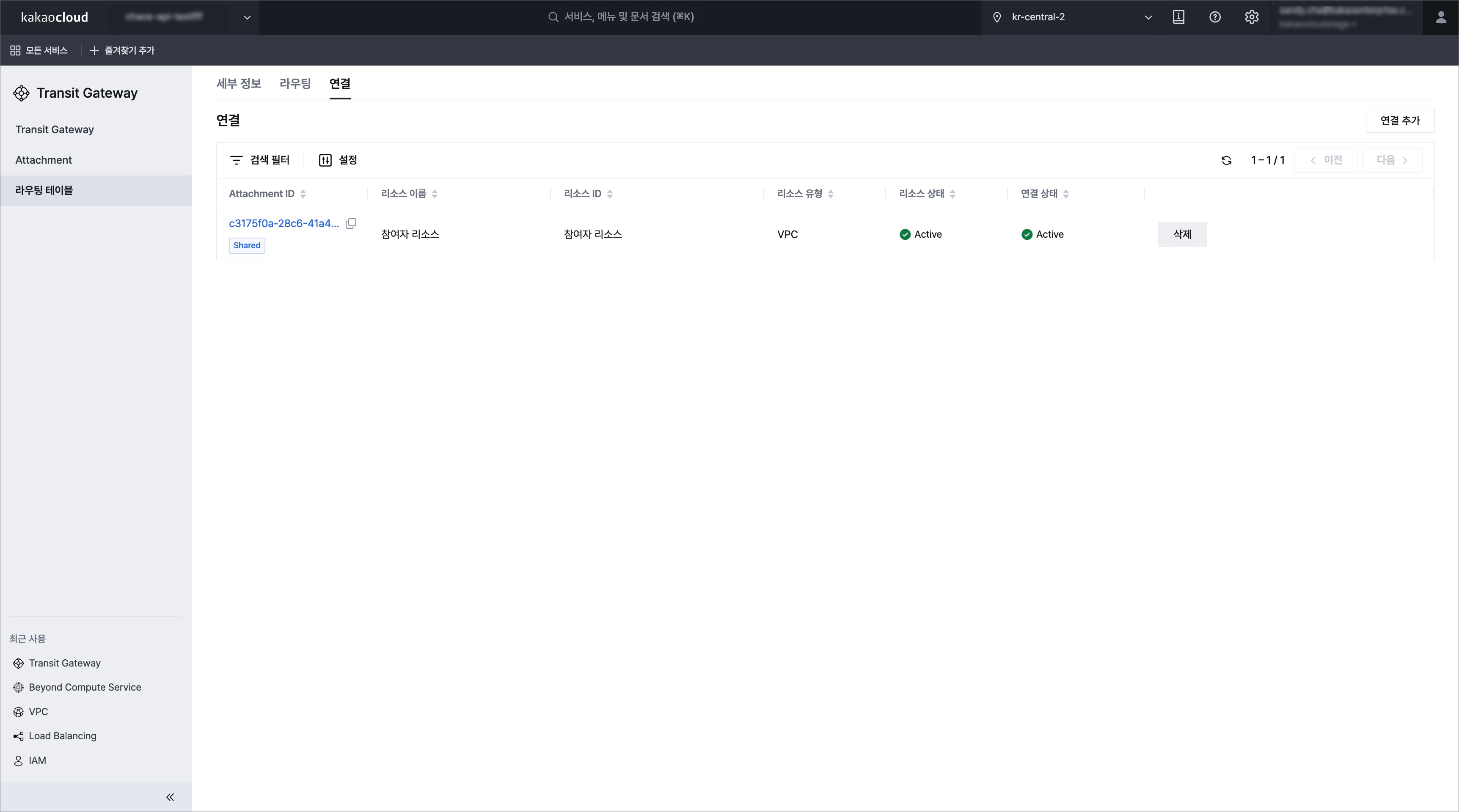 Connection details
Item Description Attachment ID Unique ID of the attachment Resource name Name of the connected resource Resource ID Unique ID of the connected resource Resource type Type of the connected resource (for example, VPC) Resource status Current status of the connected resource
-Associating: Association in progress
-Disassociating: Disassociation in progress
-Associated: Association successfulConnection status Connection status with the Transit Gateway
For enhanced security, the Transit Gateway owner cannot directly view participant attachment information. Instead, the following fields are displayed as Participant resource or Shared project instead of the actual values.
- Attachment owner project ID: Shared project
- Resource name: Participant resource
- Resource ID: Participant resource
- Resource status: Participant resource
Add association
The following describes how to add a connection to the route table.
- Go to KakaoCloud console > Networking > Transit Gateway.
- Select the route table to configure connections in the Route Table menu on the left.
- In the Associations tab, click the [Add connection] button.
- Select the attachment to add in the pop-up window, and then click the [Save] button.
Delete association
The following describes how to delete a connection from the route table.
- Go to KakaoCloud console > Networking > Transit Gateway.
- Select the route table in the Route table menu on the left.
- In the Associations tab, click the [Delete] button next to the attachment to remove.
- Check the information in the pop-up window, and then click the [Delete] button.
Rename route table
The following describes how to change the name of a route table.
- Go to KakaoCloud console > Networking > Transit Gateway.
- In the Route table menu on the left, select [⋮] > Rename for the target route table.
- Enter the new name in the pop-up window, and then click the [Save] button.
Add route
The following describes how to add a route.
- Go to KakaoCloud console > Networking > Transit Gateway.
- In the Route table menu on the left, select the route table to which you want to add a route.
- In the Routing tab, click the [Add static route] button.
- Configure the settings in the pop-up window, and then click the [Add] button.
Manage routes
View route details
You can view detailed information about routes.
-
Go to KakaoCloud console > Networking > Transit Gateway.
-
Select the target route table from the Route table menu on the left.
-
Check the information in the Routing tab.
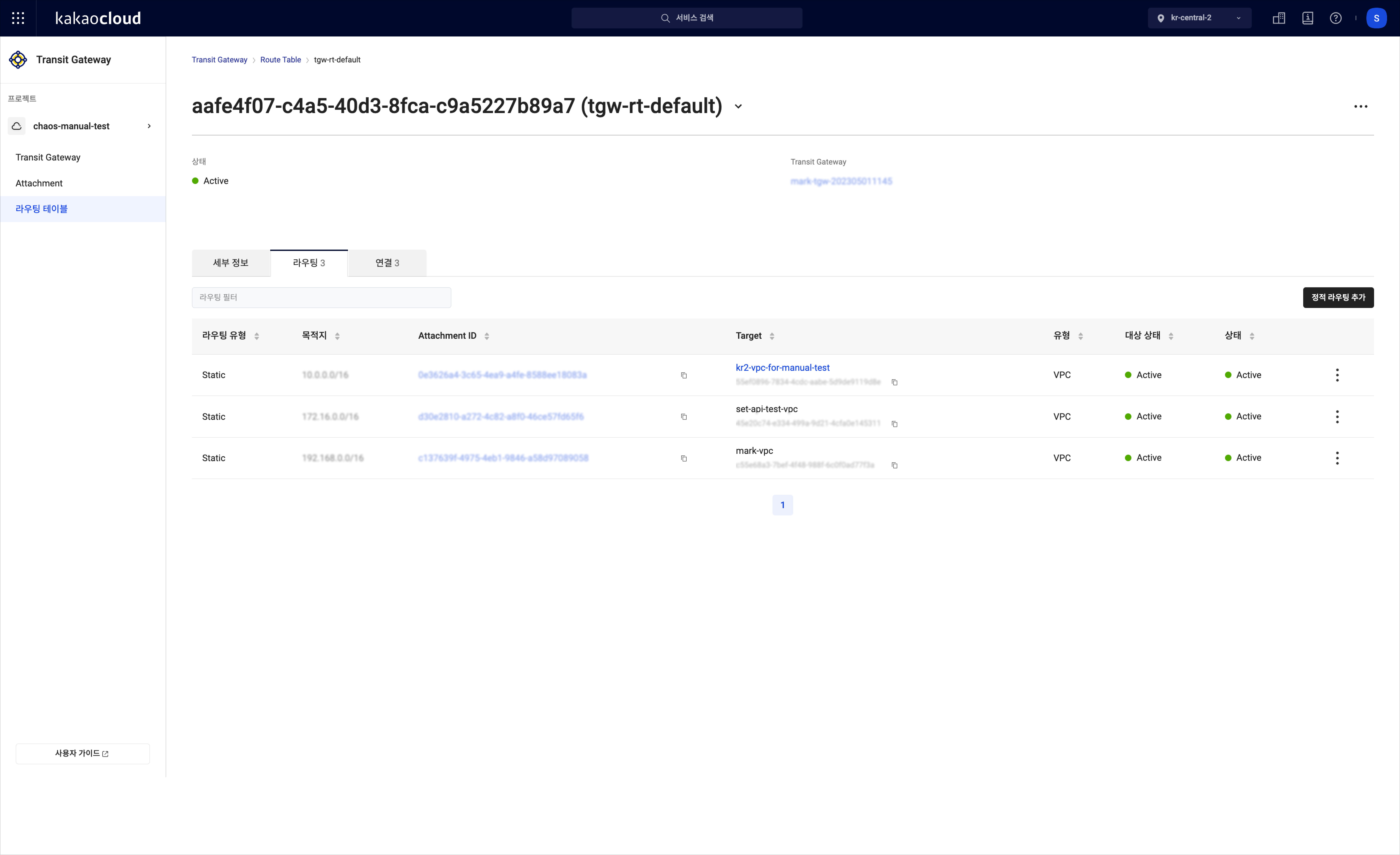 Route details
Item Description IP CIDR block Network range that is the routing destination Attachment ID Unique identifier of the attachment connected to the Transit Gateway Attachment name Name of the attachment connected to the Transit Gateway Attachment owner project ID Unique identifier of the project that owns the attachment Resource name Name of the connected resource Resource ID Unique ID of the connected resource Resource type Type of the connected resource (for example, VPC) Routing type Routing method (for example, Static) Resource status Current status of the connected resource Route status Status of the route
-Creating: Route is being created
-Deleting: Route is being deleted
-Active: Route provisioning succeeded
For enhanced security, the Transit Gateway owner cannot directly view participant attachment information. Instead, the following fields are displayed as Participant resource or Shared project instead of the actual values.
- Attachment owner project ID: Shared project
- Resource name: Participant resource
- Resource ID: Participant resource
- Resource status: Participant resource
Modify route target
The following describes how to modify the route target.
- Go to KakaoCloud console > Networking > Transit Gateway.
- Select the target route table from the Route table menu on the left.
- Select [⋮] > Modify for the route to modify.
- Modify the target in the pop-up window, and then click the [Modify] button.
- If the target type is Local, the route cannot be modified, and the message Local route cannot be modified is displayed.
Delete route
The following describes how to delete a route.
- Go to KakaoCloud console > Networking > Transit Gateway.
- Select the target route table from the Route table menu on the left.
- Select [⋮] > Delete for the route to delete.
- Enter the delete confirmation text in the pop-up window, and then click the [Delete] button.
- If the target type is Local, the route cannot be deleted, and the message Local route cannot be modified is displayed.