Configure Transit Gateway sharing
This document describes how to configure and verify communication between VPCs in two different projects using the Transit Gateway sharing feature as shown below.
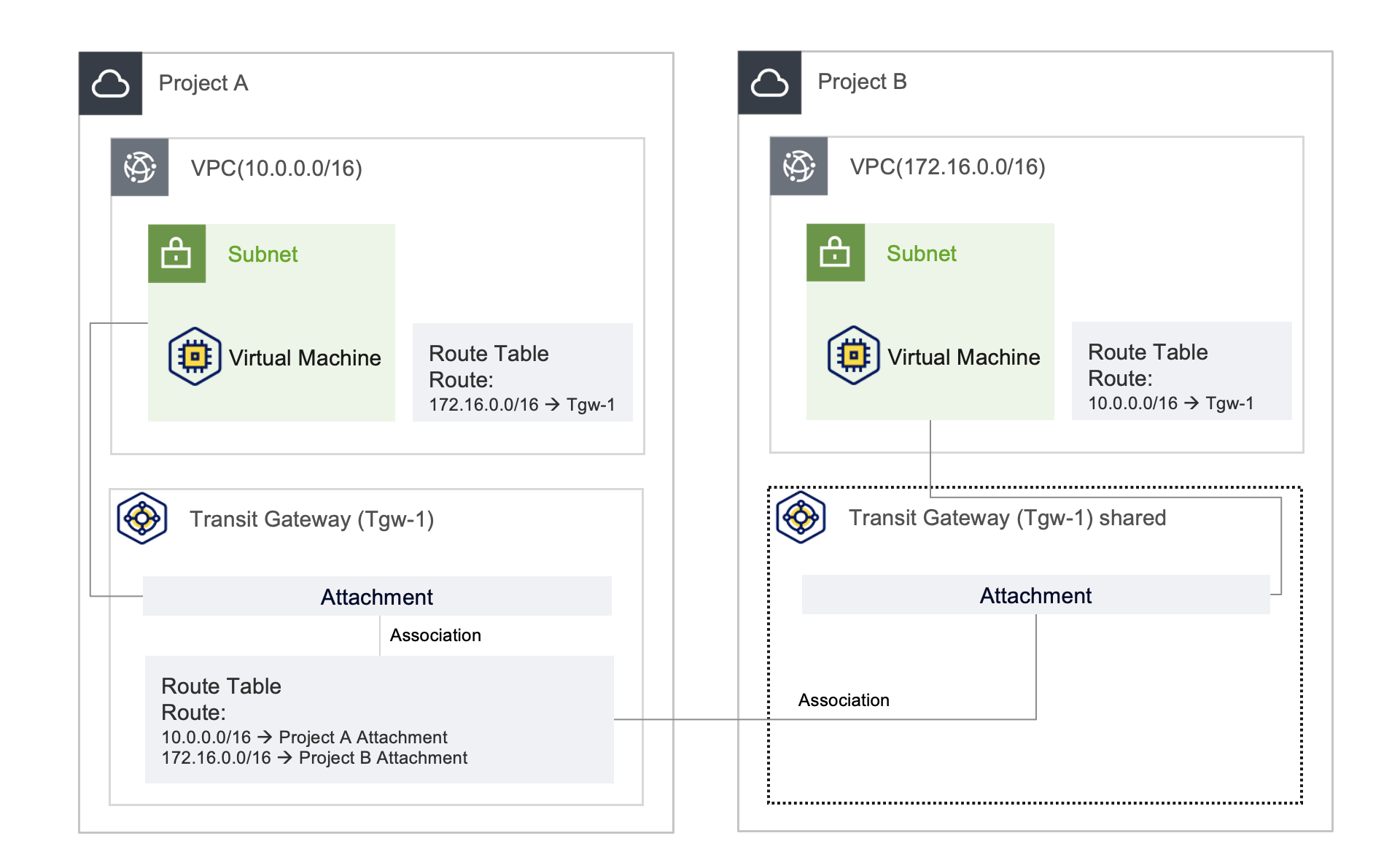 Configure Transit Gateway sharing
Step 1. Prepare prerequisites
This document assumes that a VPC and a Virtual Machine have already been created in two different projects.
To follow the scenario described in this document, create a VPC and a Virtual Machine in each project by referring to the service documentation and the information below.
Example VPC / Virtual Machine configuration
| Category | Project A | Project B |
|---|---|---|
| Project | Project that shares | Project that receives the share |
| VPC IP | 10.0.0.0/16 | 172.16.0.0/16 |
| Virtual Machine IP | 10.0.1.167 | 172.16.3.124 |
Step 2. Create and share Transit Gateway
The following describes how to create a Transit Gateway in Project A and share it with Project B.
- Refer to Create Transit Gateway and create a Transit Gateway in Project A, which will share the VPC.
- The Transit Gateway created in Project A is referred to as
Tgw-1.
- The Transit Gateway created in Project A is referred to as
- Refer to Share Transit Gateway and share the Transit Gateway (
Tgw-1) created in Project A with Project B. - In Project B, verify that the Transit Gateway (
Tgw-1) appears in the Transit Gateway list.
Step 3. Create attachments and configure routing
To configure the resources connected to the Transit Gateway and the traffic routes, create attachments and configure routing in each project.
-
Project A: Refer to Create attachment and create an attachment for
Tgw-1.
Set the resource to the VPC (10.0.0.0/16) and the subnet where the Virtual Machine is created. -
Project B: Refer to Create attachment and create an attachment for
Tgw-1.
Set the resource to the VPC (172.16.0.0/16) and the subnet where the Virtual Machine is created.
If the Share acceptance setting was configured as Automatic when creating the Transit Gateway in Project A, the attachment created in Project B is created immediately.
If it was configured as Manual, the attachment may remain in the Pending Approve state, and Project A must approve it.
For more information about approval, see Approve attachment.
-
Refer to Add connection and Add route, then associate the created attachments with the route table and configure routing.
Destination Target 10.0.0.0/16 Attachment of Project A 172.16.0.0/16 Attachment of Project B
Step 4. Configure VPC route tables
To route traffic received from the Transit Gateway, configure route tables in the VPC of each project.
-
Project A: Refer to Add route and add a routing rule for the Transit Gateway in the VPC route table.
Destination Target type Target 172.16.0.0/16 Transit Gateway Tgw-1(Transit Gateway created in Project A) -
Project B: Refer to Add route and add a routing rule for the Transit Gateway in the VPC route table.
Destination Target type Target 10.0.0.0/16 Transit Gateway Tgw-1(Transit Gateway created in Project A)
Step 5. Verify results
-
From the Virtual Machine in Project A (10.0.1.167), perform a ping test to the Virtual Machine in Project B (172.16.3.124) to verify that the Transit Gateway sharing works correctly.
Verify resultping 172.16.3.124 -
From the Virtual Machine in Project B (172.16.3.124), perform a ping test to the Virtual Machine in Project A (10.0.1.167) to verify that the connection works in both directions.
Verify resultping 10.0.1.167