Appendix. Use NAT instances
When an instance in a private subnet communicates with the internet, you can use a NAT instance for NAT communication.
A private subnet connected to a route table sends traffic to the NAT instance in the public subnet according to the routing policy. The NAT instance then sends the traffic to the internet gateway. At this time, the IP used to communicate through the internet gateway is the public IP of the NAT instance. Therefore, the NAT instance must be created in a public subnet, must have a public IP address attached, and must be able to communicate with the internet.
The following describes how a private subnet uses a NAT instance to perform NAT communication with the internet.
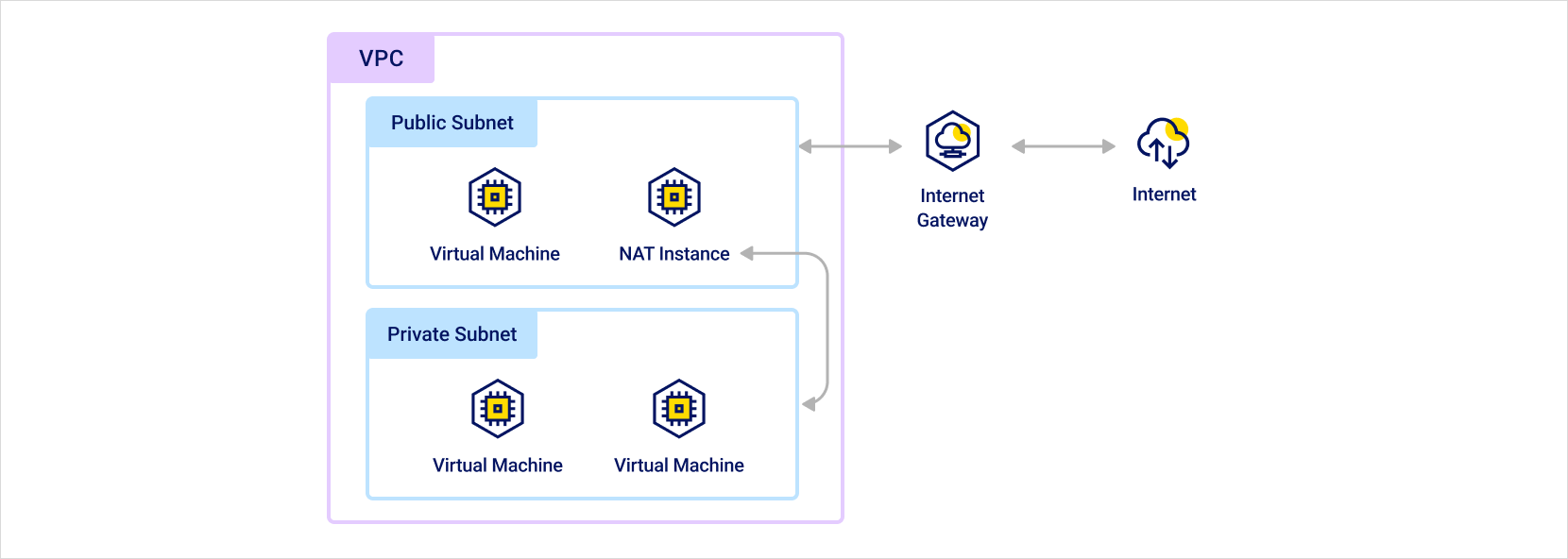 NAT instance routing path
Step 1. Create subnets and configure route tables
Create a private subnet and a public subnet, and then configure route tables.
-
Create a private subnet and a public subnet. For more information, see Create and manage subnets.
-
Configure the route tables to use for the private subnet and public subnet. At this time, connect each subnet to the route table according to its purpose. For more information, see Create and manage route tables.
[Public subnet] Route table
Destination Target type Target name VPC CIDR IP Local Local 0.0.0.0/0 Internet gateway Internet gateway ID [Private subnet] Route table
Destination Target type Target name VPC CIDR IP Local Local
Step 2. Configure NAT instance
Create a NAT instance in the public subnet, and then attach a public IP.
-
Create an instance to use as a NAT instance in the public subnet.
-
Attach a public IP to the NAT instance. For more information, see Create and manage public IPs.
-
Connect to the NAT instance and configure it as shown below. The commands differ depending on the operating system of the instance. Check the tabs below and configure them according to your environment. The example commands do not persist after a reboot. If you want the settings to remain after rebooting, additional configuration is required.
- Ubuntu
- CentOS
Use the following commands based on Ubuntu 20.04.
BASHsudo apt-get update -y
LINE=$(grep 'net.ipv4.ip_forward=' /etc/sysctl.conf)
sudo sed -i "s/${LINE}/net.ipv4.ip_forward=1/" /etc/sysctl.conf
sudo sysctl -p
INTERFACE=$(ip link | awk -F: '$0 !~ "lo|vir|wl|^[^0-9]"{print $2;getline}')
sudo /sbin/iptables -t nat -A POSTROUTING -o ${INTERFACE} -j MASQUERADE
sudo apt-get install -y iptables-persistentUse the following commands based on CentOS 8.
BASHsudo sysctl -w net.ipv4.ip_forward=1
sudo yum install -y iptables
sudo iptables -t nat -A POSTROUTING -o {interface} -j MASQUERADEParameter Description {interface}Modify and set this value to the Network Interface name used for NAT communication
- Examples:eth0,enp3s0
Step 3. Modify allowed packet forwarding IPs
By default, an instance checks the source and destination and receives only traffic addressed to itself. However, a NAT instance must be able to send and receive traffic even when the source and destination of the traffic are not itself.
Through the Modify allowed packet forwarding IPs feature of the instance, you can configure the created instance for use as a NAT instance.
- In the KakaoCloud console, go to the Virtual Machine menu.
- On the Instances tab, click the [⋮] button for the instance to use as a NAT instance, and then select Modify allowed packet forwarding IPs.
- In the Modify allowed packet forwarding IPs pop-up window, select the network interface, enter
0.0.0.0/0in the Modify allowed packet forwarding IPs input box, add it, and then click the [Apply] button.
- In general, a Network Interface allows only network traffic for IP/MAC addresses targeted to itself to maintain secure network traffic security. By adding an IP address or CIDR through Modify allowed packet forwarding IPs, traffic for those IP addresses is allowed, and packets are forwarded according to the security group policy.
Step 4. Set up security groups for NAT instance
When using an instance for which packet forwarding has been enabled through Modify allowed packet forwarding IPs as described above, communication is possible according to the following security group policies.
Configure the security group for the inbound and outbound rules as follows.
If you want to communicate from the private subnet using ports other than HTTP and HTTPS, you must add all ports to be used in the inbound/outbound rules of the security group for the NAT instance.
Inbound rules
Configure the following security group settings in the inbound rules so that the NAT instance can receive packets from instances in the private subnet and forward them to the internet, and so that a system administrator can access it through SSH.
| Protocol | Packet source | Port number | Description |
|---|---|---|---|
| TCP | Private subnet CIDR | 80 | Allow inbound HTTP traffic from instances in the private subnet |
| TCP | Private subnet CIDR | 443 | Allow inbound HTTPS traffic from instances in the private subnet |
| TCP | Public IP address range of the administrator network | 22 | Allow inbound SSH access to the NAT instance from the administrator network |
Outbound rules
Configure the following security group settings in the outbound rules so that traffic can go to the internet through the NAT instance.
| Protocol | Packet destination | Port number | Description |
|---|---|---|---|
| TCP | 0.0.0.0/0 | 80 | Allow outbound HTTP traffic |
| TCP | 0.0.0.0/0 | 443 | Allow outbound HTTPS traffic |
Step 5. Update route table
Update the route table of the private subnet that will send traffic to the NAT instance. To update the route table, you must add an instance route to the route table connected to the private subnet. For more information, see Add route.
| Destination | Target type | Target name |
|---|---|---|
| VPC CIDR IP | Local | Local |
| 0.0.0.0/0 | Instance | Instance IP (instance ID) |