Create and manage network interfaces
The following describes how to create and manage network interfaces.
Create network interface
You can create a new network interface.
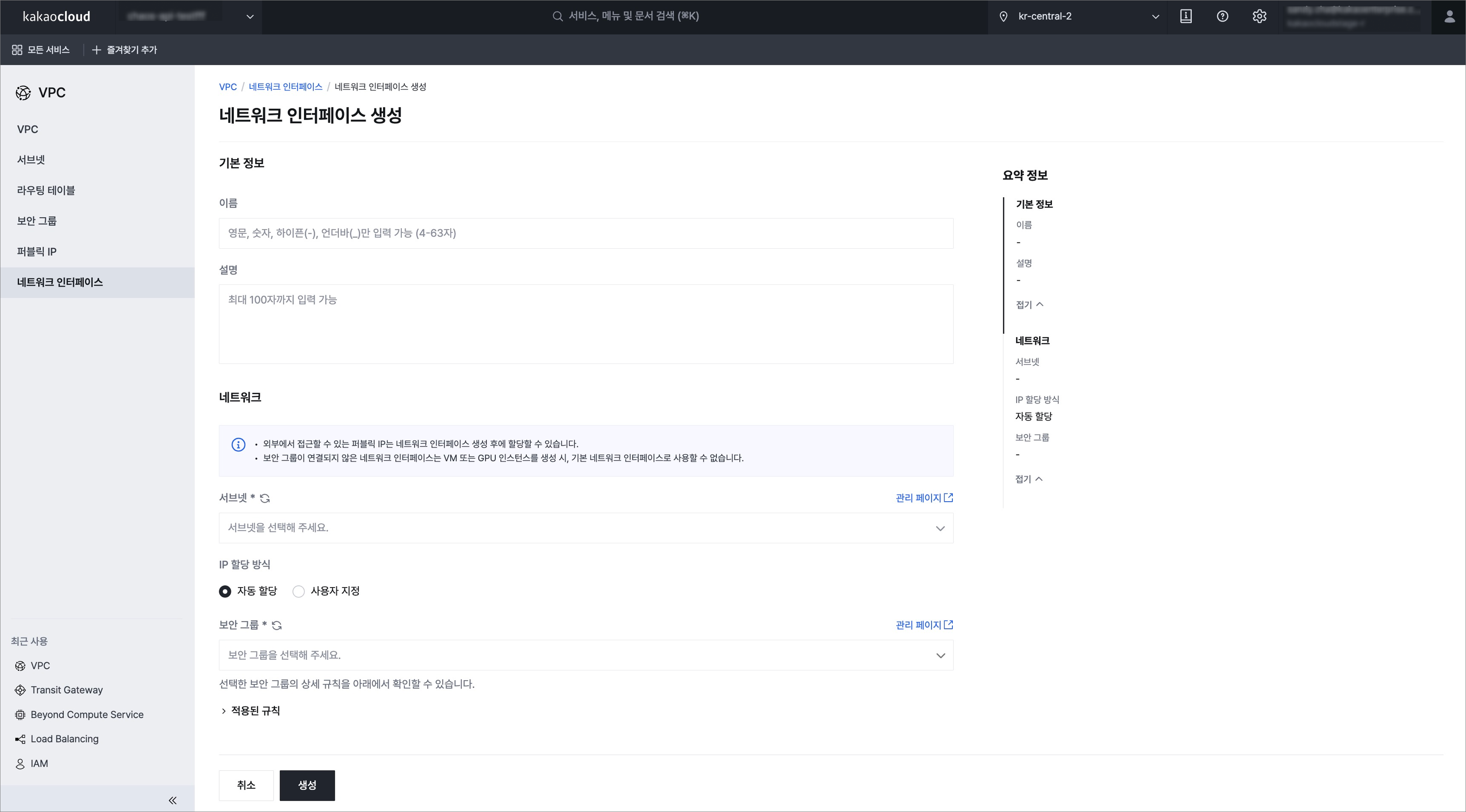 Create network interface
-
Go to KakaoCloud console > Networking > VPC.
-
Click the Network Interface menu, and then click the [Create network interface] button.
-
Enter the information in the pop-up window, and then click the [Create] button.
Category Description Basic information Basic information entered when creating a network interface
- Name: Name of the network interface
- Description: Description of the network interfaceNetwork Basic network setting options that must be configured when creating a network interface
- Subnet: Display and select the list of subnets in the selected VPC
- IP allocation method: Select the IP allocation method
- Security group: Security group to apply to the network interface to be created
You can also create a new network interface when creating an instance. For more information, see Create and connect instances.
Manage network interfaces
View network interface list and basic information
You can view the list of currently created network interfaces and their basic information.
-
Go to KakaoCloud console > Networking > VPC.
-
Click the Network Interface menu, and then view the list of currently created network interfaces and their basic information.
Category Description ID Unique ID assigned to the network interface Name Name assigned to the network interface
- The name may not be displayed because it is not a required valueStatus Usage status of the network interface
-Available: Indicates that the resource is not connected and can be connected
-In-Use: Indicates that the resource is already connected and cannot be connected to another resourceSecurity group List of security groups applied to the network interface Connected resource type Type of the resource connected to the network interface Primary private IP Information about the primary private IP address assigned to the network interface Primary public IP Information about the primary public IP address connected to the primary private IP address Availability zone Availability zone information where the network interface was created Created at Date and time when the network interface was created -
To view detailed information, click the network interface for which you want to check details, and then view the information on the detail page.
View network interface details
You can view detailed information about the network interface.
-
Go to KakaoCloud console > Networking > VPC.
-
Click the Network Interface menu, and then select the network interface from the currently created list for which you want to view details.
-
Check the information on the detail page of the selected network interface.
info- The Instance tab and Security tab are available only for network interfaces whose connected resource type is 'Instance'.
- Details tab
- Instance tab
- Network tab
- Security tab
You can check detailed information about the network interface.
Category Description Name Name assigned to the network interface ID Unique UUID of the network interface Status Status of the network interface
- Available: State in which the resource can be connected
- In-Use: State in which the resource is already connectedAvailability zone Availability zone where the network interface was created Allowed packet forwarding IP list List of allowed packet forwarding IP addresses or CIDRs added to the network interface Description Description of the network interface Created at Date and time when the network interface was created If the network interface is connected to an instance, you can check information about the connected instance.
Category Description Name Name of the connected instance ID Unique UUID of the connected instance Created at Date and time when the instance was created You can check the network information configured for the network interface.
Category Description Name Name of the subnet in the VPC where the network interface was created ID Unique UUID of the subnet in the VPC where the network interface was created Private IP address Private IP address assigned to the network interface Public IP address Public IP address connected to the private IP address of the network interface MAC MAC address of the network interface You can check detailed information about the security groups applied to the network interface.
Category Description Security group List of configured security groups Detailed rules Detailed rules of the configured security groups
- Inbound tab: Inbound rules of the applied security groups
- Outbound tab: Outbound rules of the applied security groups
Change network interface information
You can change the name and description of the network interface.
- Go to KakaoCloud console > Networking > VPC.
- Click the Network Interface menu, and then select [⋮] > Change information for the target network interface.
- Modify the information in the pop-up window, and then click the [Save] button.
Modify security groups
You can modify the security groups applied to the network interface.
- Go to KakaoCloud console > Networking > VPC.
- Click the Network Interface menu, and then select [⋮] > Modify security groups for the target network interface.
- Modify the security groups to apply to the network interface in the pop-up window, and then click the [Modify] button.
Modify allowed packet forwarding IPs
In general, a network interface checks the source/destination IP addresses and processes packets only when they are addressed to its own IP, and does not send the remaining packets. By adding allowed packet forwarding IPs, you can configure it to send packets for the added IP addresses or IP addresses within the CIDR range.
- Go to KakaoCloud console > Networking > VPC.
- Click the Network Interface menu, and then select [⋮] > Modify allowed packet forwarding IPs for the network interface whose name you want to change.
- In the pop-up window, enter the IP address or CIDR you want to add. You can enter multiple values through the [Add] button.
- After entering the values, click the [Modify] button.
- You can add up to 10 allowed packet forwarding IPs/CIDRs.
Delete network interface
You can delete one or multiple network interfaces at the same time when they are not connected to a resource, that is, when their status is Available.
- Go to KakaoCloud console > Networking > VPC.
- Click the Network Interface menu, and then select [⋮] > Delete for the network interface whose name you want to change.
- Enter the delete confirmation text in the pop-up window, and then click the [Delete] button.