Create and manage subnets
You can divide a VPC into multiple subnets according to purpose and usage. The following describes how to create and manage subnets in the VPC service.
- VPC role management follows IAM role-based access control (RBAC), and only Project Admin can create and manage subnets. Project members can only view VPCs.
- You can check your role in KakaoCloud console > Profile (top right) > Organization role or Project role.
Create subnet
You can create a new subnet.
- When a VPC is created, one default subnet is automatically created.
-
Go to KakaoCloud console > Networking > VPC.
-
Click the Subnet menu, and then click the [Create subnet] button.
-
Enter the required information to create the subnet, and then click the [Create] button.
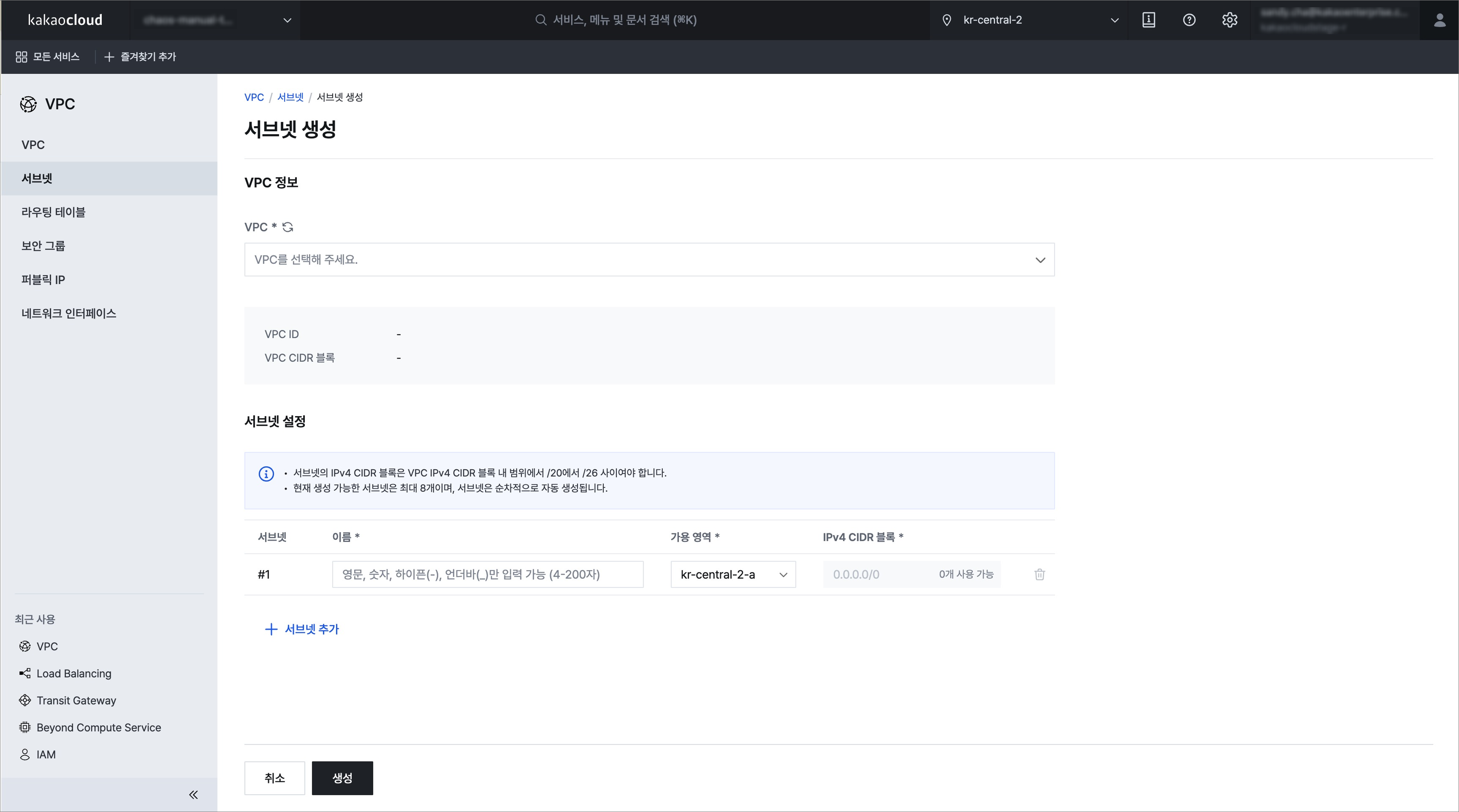 Create subnet
Category Description VPC information Select the VPC where the subnet will be created
- VPC: Select the VPC where the subnet will be created and display the selected VPC name
- VPC ID: Display the ID of the selected VPC
- VPC CIDR block: IP CIDR block of the selected VPCSubnet settings - Name: Enter the subnet name
- Availability zone: Select the availability zone
- IP CIDR block: Enter the subnet IP CIDR block
ㄴ Must not overlap with existing subnet IPs, and the prefix length must be selected between 20–26
Manage subnets
View subnet list and basic information
You can view the list of currently created subnets and their detailed information.
-
Go to KakaoCloud console > Networking > VPC.
-
Click the Subnet menu, and then check the list of currently created subnets and their basic information.
Category Description Name Name of the created subnet ID Unique ID of the created subnet Status Status of the subnet IP CIDR block IP CIDR block of the subnet Availability zone Availability zone information VPC Name of the VPC where the subnet is located VPC ID Unique ID of the VPC where the subnet is located Route table Route table connected to the subnet Route table ID Unique ID of the route table connected to the subnet
View subnet details
You can view detailed information about the subnet.
-
Go to KakaoCloud console > Networking > VPC.
-
Click the Subnet menu, and then click the subnet for which you want to view detailed information.
-
Check the detailed information of the subnet on each tab.
- Details tab
- Shared projects tab
Item Description Name User-defined name used to identify the subnet ID Unique ID automatically assigned when the subnet is created Status Current operating status of the subnet (for example, Active) IP CIDR block Private IP address range used in the subnet VPC Name of the VPC to which the subnet belongs VPC ID Unique ID of the connected VPC Route table Name of the route table connected to the subnet Route table ID Unique ID of the connected route table Availability zone Availability Zone where the subnet was created Project ID of the subnet owner Unique identifier of the project that owns the subnet Created at Date and time when the subnet was created Item Description Name Name of the project with which the subnet is shared ID Unique ID of the shared project Description Brief description of the project
Rename subnet
You can change the name of the subnet.
- Go to KakaoCloud console > Networking > VPC.
- Click the Subnet menu, and then select [⋮] > Rename for the subnet whose name you want to change.
- Enter the information in the pop-up window, and then click the [Save] button.
Share subnet
You can share a specific subnet with another project in the same domain. To share a subnet, follow the steps below.
If a shared subnet is unshared from a project, the project that received the shared subnet may not be able to connect to resources currently using that subnet.
- Go to KakaoCloud console > Networking > VPC.
- Click the Subnet menu, and then select [⋮] > Add share for the subnet you want to share.
- Enter the project ID with which you want to share the subnet in the pop-up window, and then click the [Add] button.
Unshare subnet
The following describes how to remove subnet sharing from another project.
If a shared subnet is unshared from a project, the project that received the shared subnet may not be able to connect to resources currently using that subnet.
- Go to KakaoCloud console > Networking > VPC.
- Click the Subnet menu, and then select the Shared projects tab.
- Select [⋮] > Unshare subnet for the item you want to remove sharing from.
- Click the [Unshare] button in the pop-up window.
- Participants can select
Shared VPCwhen choosing a VPC while creating resources such as instances to view and select shared subnets. - Participants cannot view route table information of the shared subnet.
- Participants cannot perform actions such as
Rename subneton the shared subnet. - A subnet can also be shared with a project that is not a project member. In this case, only the project ID information can be viewed.
Delete subnet
You can delete a subnet that is no longer used.
If there are resources created within the subnet, the subnet cannot be deleted. Before deleting the subnet, you must delete all resources using that subnet.
- Go to KakaoCloud console > Networking > VPC.
- Click the Subnet menu, and then select [⋮] > Delete for the subnet to delete.
- Enter the delete confirmation text in the pop-up window, and then click the [Delete] button.
Increase subnet quota
You can create up to 30 subnets. If you want to increase the subnet quota, contact the Helpdesk.
-
In the KakaoCloud console, click the [Helpdesk] button at the top right.
-
Click Questions and Answers, and then click the [Ask question] button at the top right.
-
Click [Technical inquiry], and then write a request to increase the subnet quota in Ask question and click the [Submit] button. Select Technical inquiry as the question type and VPC as the detailed type.
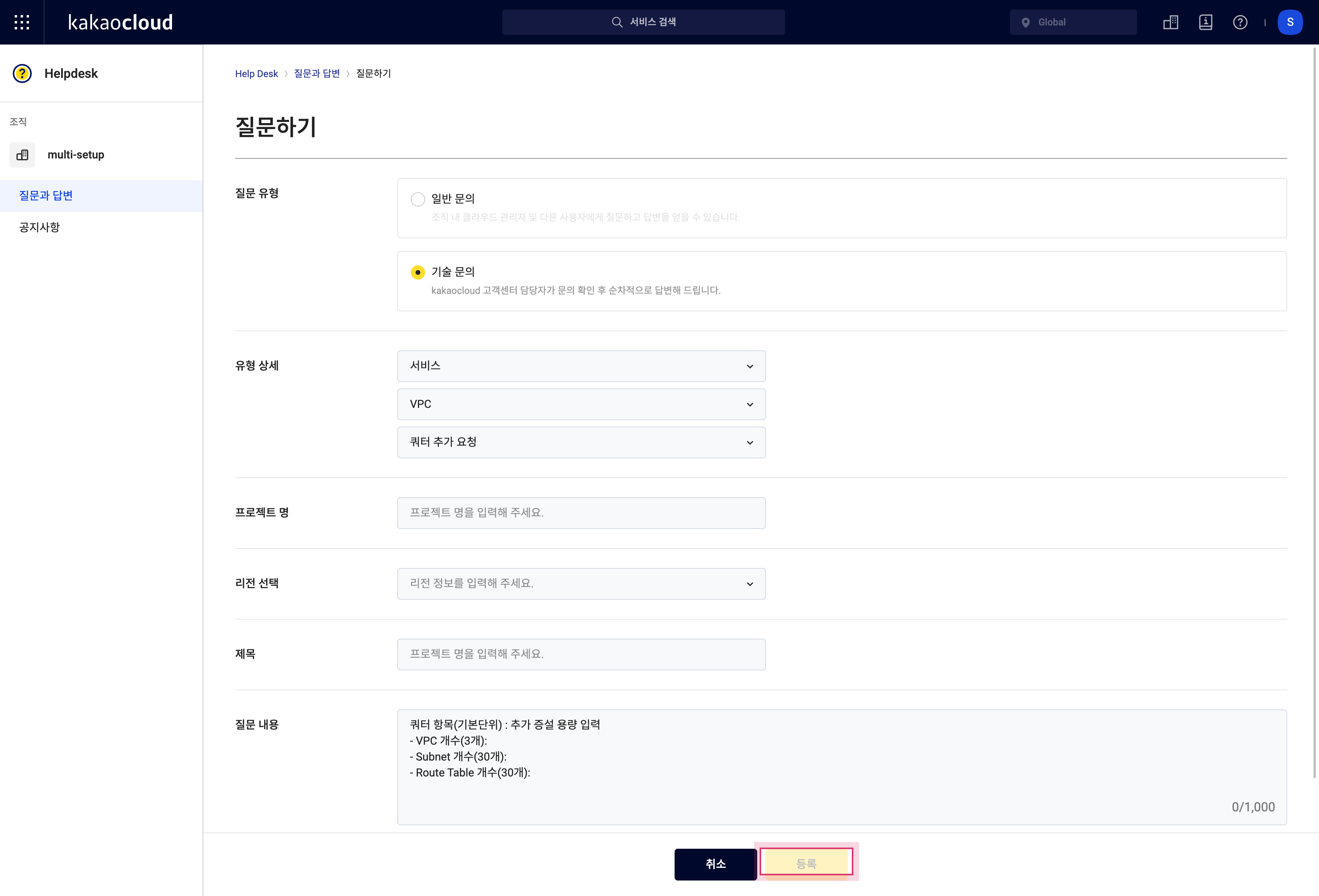 Increase subnet quota