File Storage backup
Backup service supports File Storage instance backups (full, incremental) and provides capability to restore lost data caused by various incidents.
Create backup
Follow these steps to create backup in File Storage backup service:
-
Go to KakaoCloud console > Storage > File Storage.
-
In the Backup menu, click the [Create backup] button.
-
In Create backup, enter the required information and click the [Create] button.
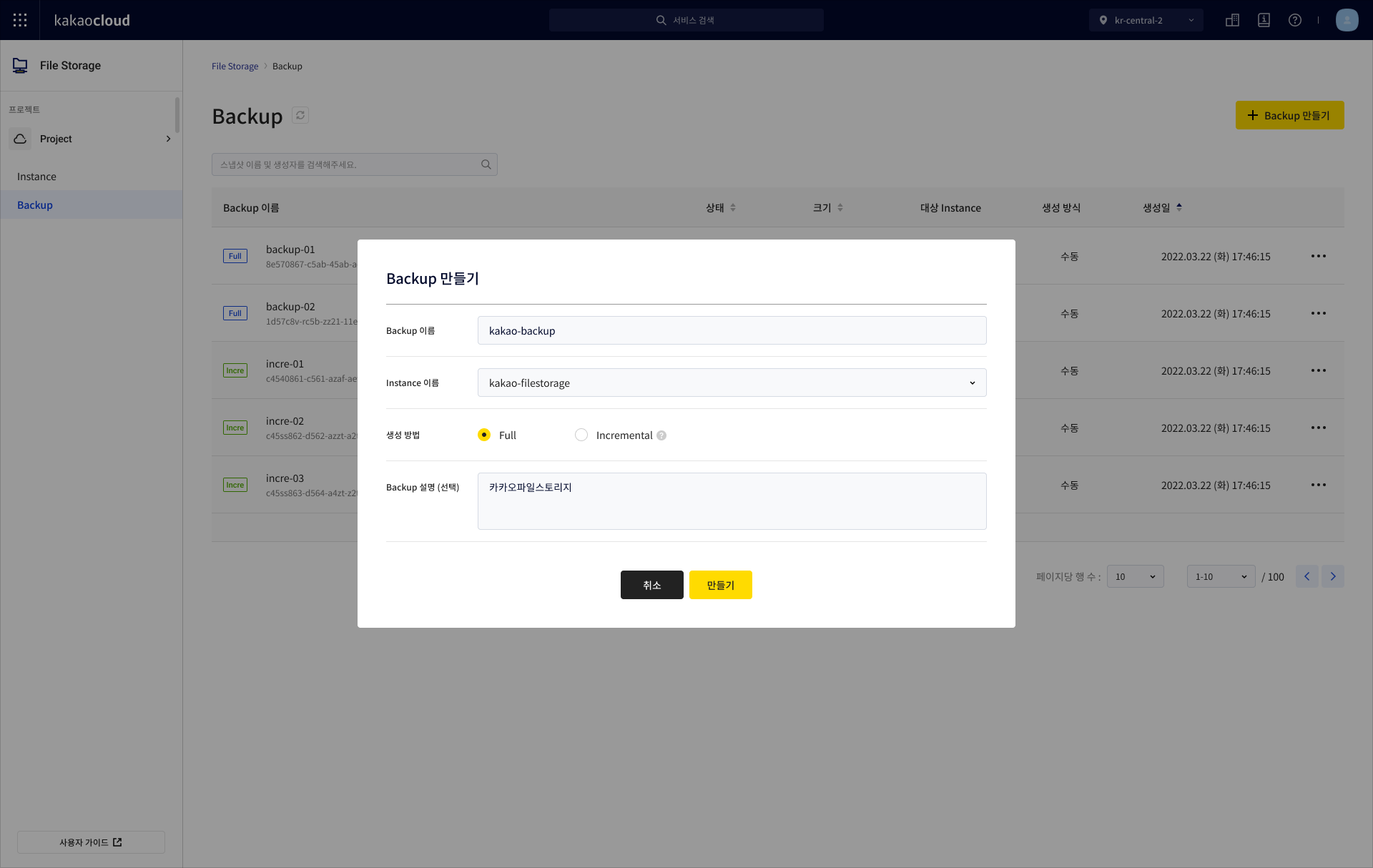 Create backup
Category Description Backup name Name of backup to create Instance name File Storage instance to back up Creation method - Full: Backup entire instance
-Incremental: Backup only changes since last full backupDescription (optional) Description of backup file
- To perform incremental backup, initial full backup is required.
Incremental backup is performed based on most recent full or incremental backup. - If File Storage instance was created through restore,
incremental backup can be performed only after initial full backup is completed.
Backup size may exceed actual stored data size due to KakaoCloud backup method (image-based backup).
Manage backup
Follow these steps to view backup list in File Storage backup service:
View backup list
-
Go to KakaoCloud console > Beyond Storage Service > File Storage.
-
In Backup menu, check current backups.
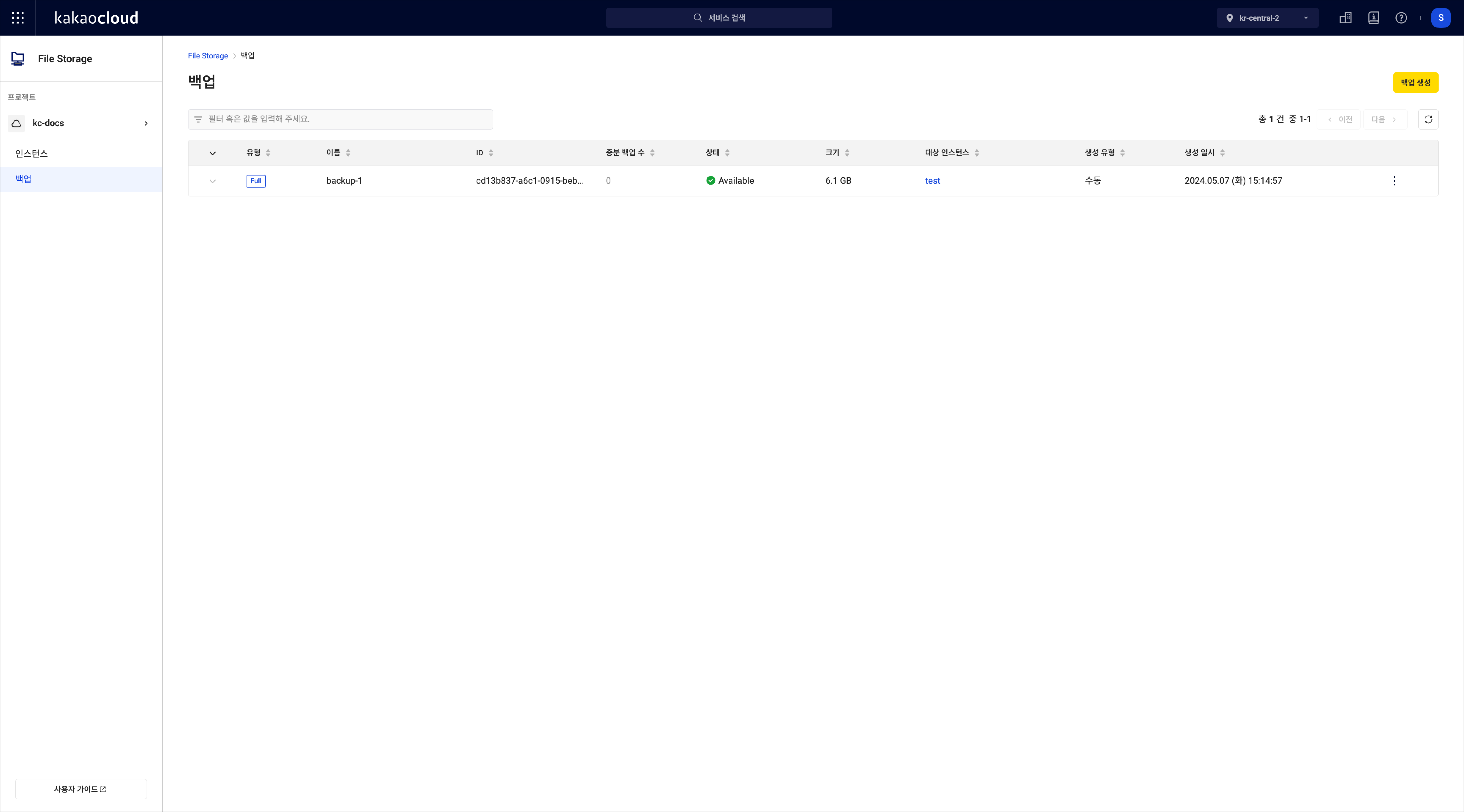 Backup list
Category Description Backup type - Full: Backup entire instance
-Incremental: Backup only changes since last full backupName Name entered during backup creation ID Unique backup ID Incremental backup count Number of incremental backups created based on full backup Status Backup status
-Create: Creating backup
-Available: Backup available
-Restoring: Restoring
-Deleting: Deleting
-Error: Backup unavailableSize Backup size Target instance Source instance of backup Created at Backup creation time
Rename backup
-
Go to KakaoCloud console > Beyond Storage Service > File Storage.
-
In the Backup menu, click the [⋮] button for the backup to rename, then select Rename.
-
In the rename pop-up, modify the backup name and description, then click the [Save] button.
Restore backup
-
Go to KakaoCloud console > Beyond Storage Service > File Storage.
-
In the Backup menu, click the [⋮] button for the backup to restore, then select Restore.
-
Backup restore supports two scenarios: restore to new File Storage instance or restore to existing File Storage instance. Choose based on environment.
Backup restore type Restore to new File Storage instance Restore to existing File Storage instance Instance information New instance name, description Existing instance name, description Protocol NFS NFS Type Basic Basic Size Restored instance size Restored instance size Network configuration Network of new instance Network of existing instance Access control configuration New access control settings Existing access control settings Mount configuration Mount settings for new instance Mount settings for existing instance infoWhen restoring to existing File Storage instance, existing data is overwritten.
- Service interruption occurs during restore process.
Delete backup
-
Go to KakaoCloud console > Beyond Storage Service > File Storage.
-
In the Backup menu, click the [⋮] button for the backup to delete, then select Delete.
-
In the delete pop-up, enter the confirmation text and click the [Delete] button.
info- Backup cannot be deleted if it has dependent incremental backups.
- Only backups without dependent incremental backups can be deleted.
- Backup cannot be deleted if it has dependent incremental backups.