Create and manage instance
Create instance
To use File Storage, you must create instance, virtual server that allocates storage. Follow these steps to create instance in File Storage service.
Capacity of Basic instance can be allocated from minimum 1.0 TB to maximum 16 TB, in increments of 0.5 TB.
-
Go to KakaoCloud console > Storage > File Storage.
-
In the Instance menu, click the [Create instance] button.
-
Enter the required information and click the [Create] button.
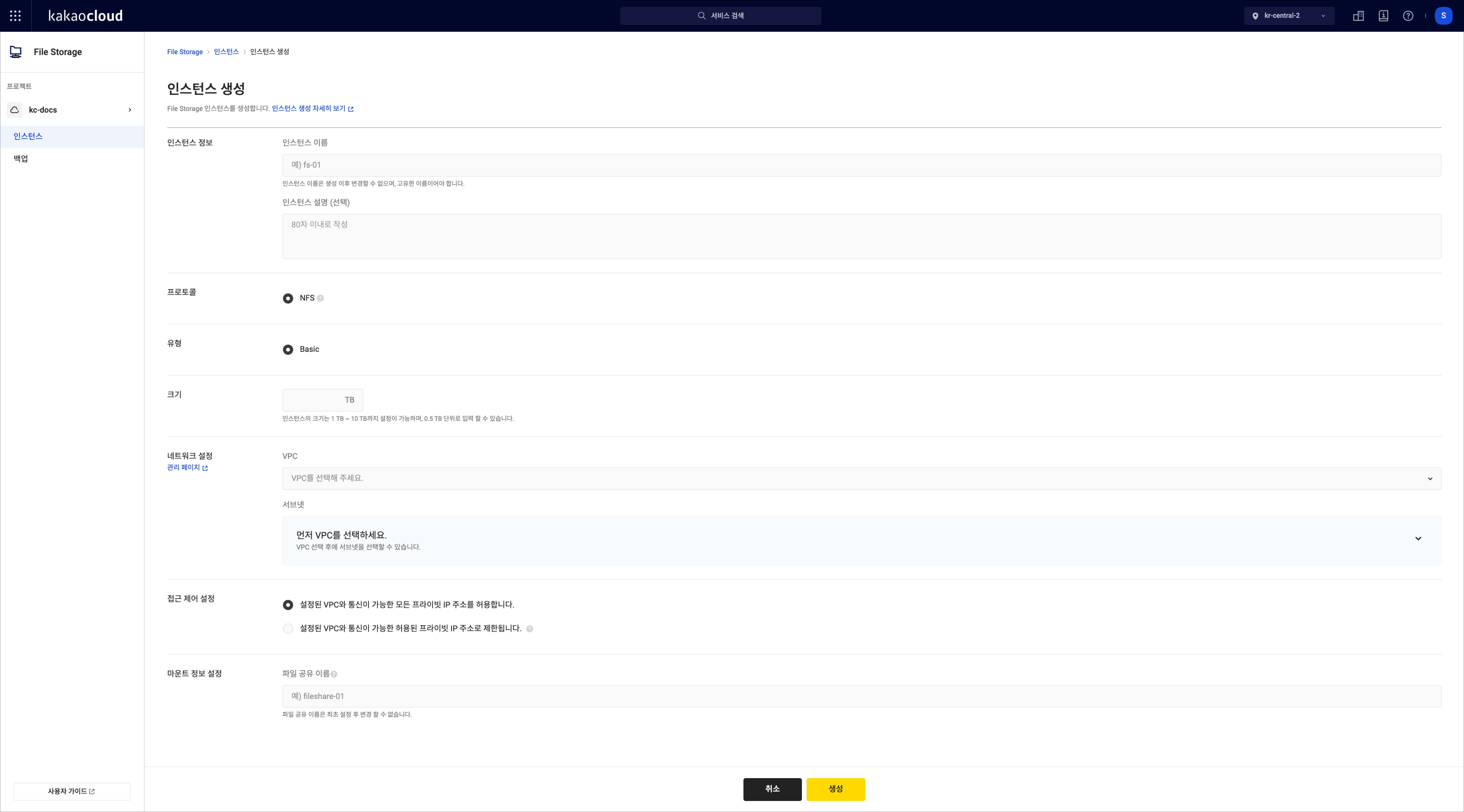 Create instance
Category Description Instance information Instance name: Name of instance to create
- Example: fsinstance-01
- Duplicate names are not allowed within same project
Instance description (optional): Description of instanceProtocol Select appropriate protocol for server OS to mount
- Currently only NFS protocol for Linux server is supported (more protocols planned)
- NFS protocol supports Ubuntu, CentOS, etc.
- File Storage supports only NFS v4 and uses port 2049Type Currently only Basictype is available
- Types will be expanded to suit various environments
- For details, refer to Instance typesSize Set instance size
- Enter appropriate size to allocate
- Minimum and maximum size vary by type
ㄴ Currently available Basic type supports 1.0 TB to 16 TB, in increments of 0.5 TB
ㄴ Example: “1.5TB”Network configuration VPC: Select VPC to configure instance
Subnet: Subnetwork dividing VPC IP range
- Select one subnet from VPCAccess control configuration Set resources that can access File Storage instance
- Allow all private IP addresses that can communicate with configured VPC: Resources within VPC can access without additional configuration
- Restrict to allowed private IP addresses that can communicate with configured VPC: Only specified private IPs can access (up to 30)
* Note
- If selecting VPC shared with another project, resources in that project can also mount
- If inter-subnet access is not supported, access is not possible even if IP is specifiedMount configuration Set file share name for mount point
- Example: fileshare-01
- Refer to Unavailable shared directory names below
Unavailable shared directory names
| Name | ||||
|---|---|---|---|---|
| Bin | Lib | Media | Run | Usr |
| Boot | Lib32 | Mnt | Sbin | Var |
| Dev | Lib64 | Opt | Srv | Etc |
| Libx32 | Proc | Sys | Home | Lost+found |
| Root | Tmp |
Manage instance
Follow these methods to manage instance in File Storage service:
View instance list
You can view list of created instances and their basic information.
-
Go to KakaoCloud console > Storage > File Storage.
-
In Instance menu, check instances and their information.
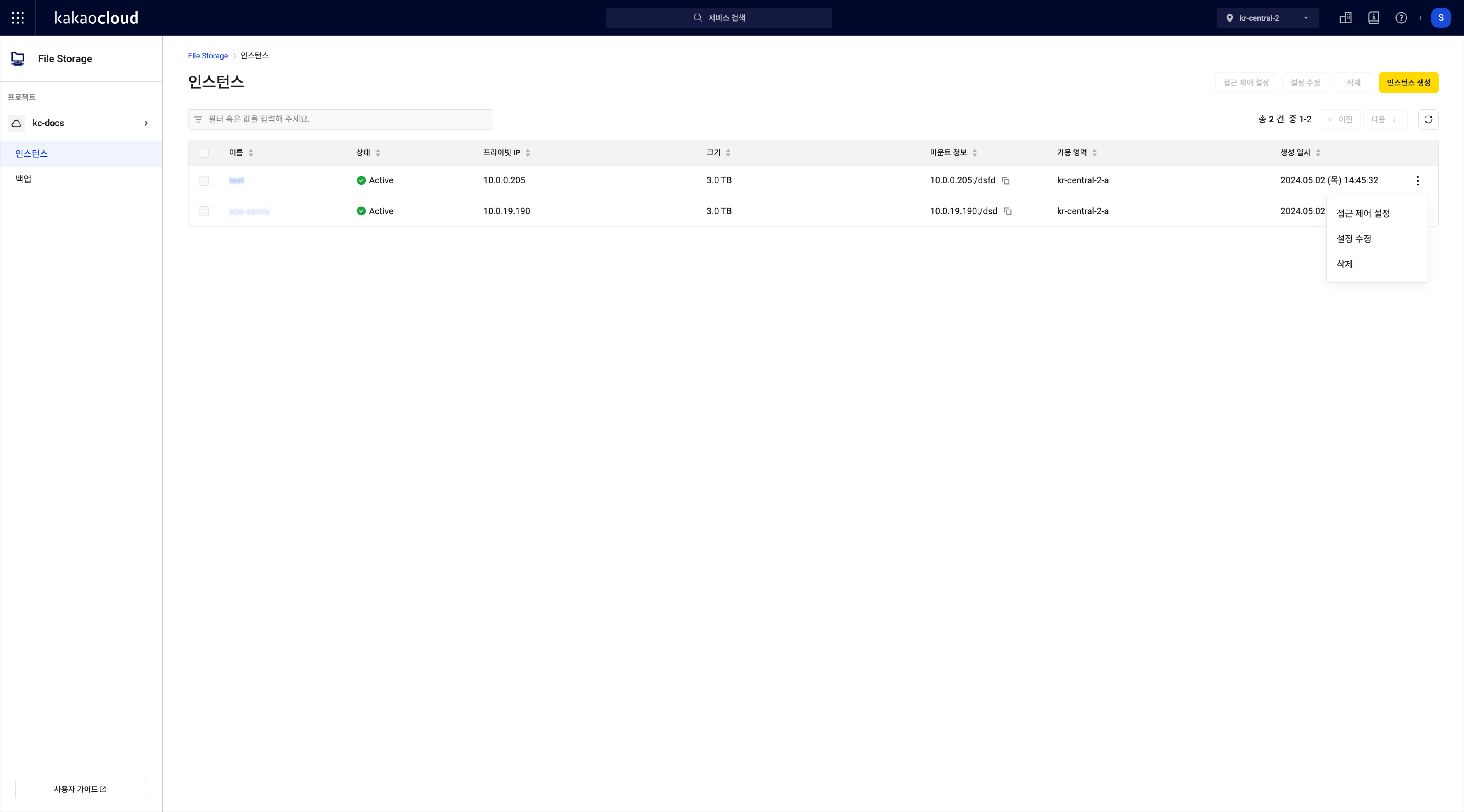 Instance list
Category Description Name Instance name entered at creation Status Instance status
- For details, refer to Instance lifecycle and statePrivate IP Private IP assigned at creation Size Instance size Mount information Mount path Availability zone Availability zone where instance is created Created at Instance creation date [⋮] button Copy mount information: Copy mount point
- Access control configuration: Check VPC and subnet and configure access control
- Instance settings: Modify instance description
- Delete: Delete instance
Change instance size
Follow these steps to change instance size:
-
Go to KakaoCloud console > Storage > File Storage.
-
In the Instance menu, click the [⋮] button for the target instance, then select Edit instance settings.
-
Enter the new size in the instance size field and click the [Save] button. Only values larger than current size are allowed; downsizing is not supported.
Changing instance size causes temporary service interruption due to instance restart.
View instance details
You can view detailed information, network, and backup information.
-
Go to KakaoCloud console > Storage > File Storage.
-
In Instance menu, click instance to view details.
-
Click Details tab and review information.
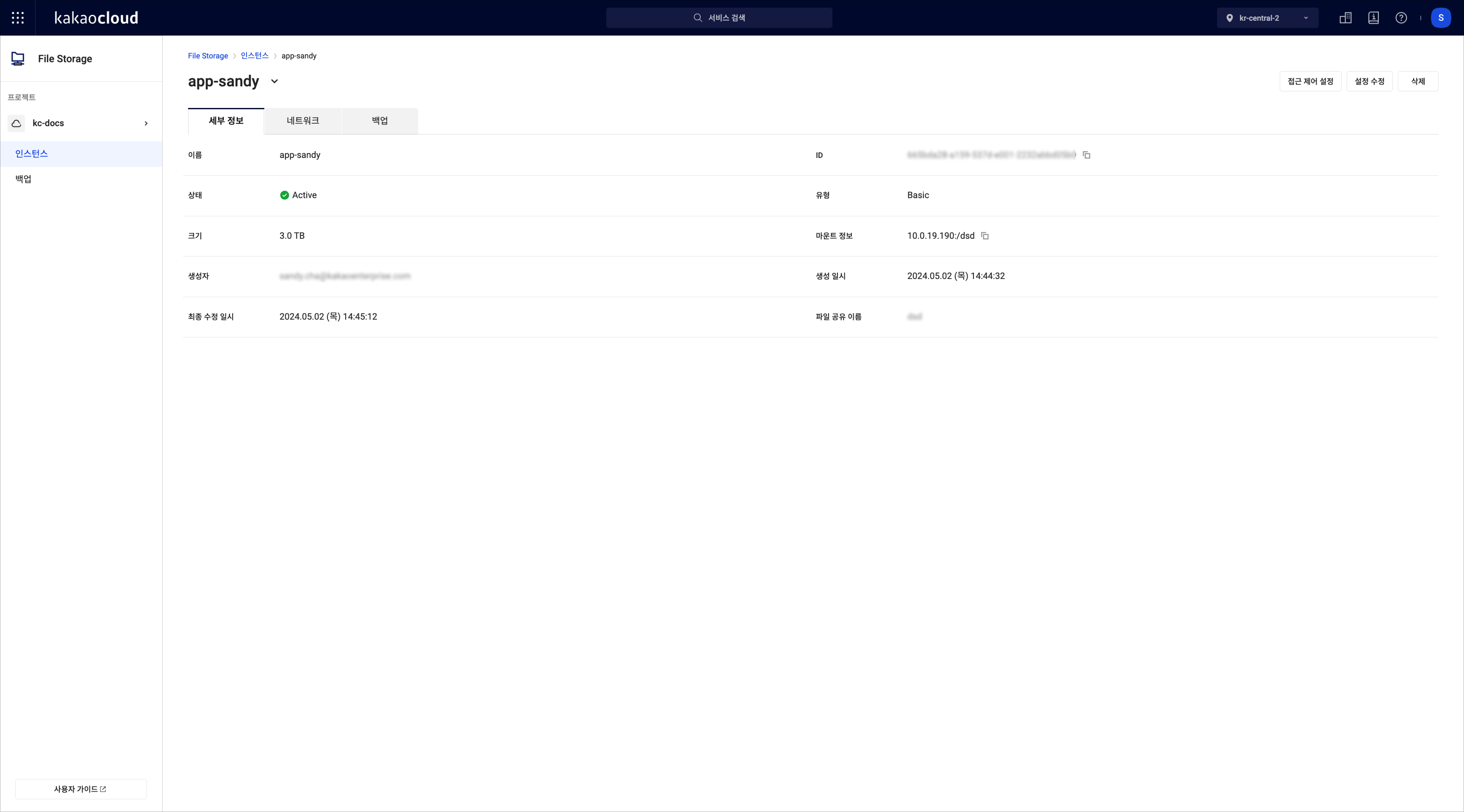 Instance details
Category Description Name Instance name Status Current instance status
-Creating: Allocating resources and configuring volume
-Active: Running and available
-Restoring: Performing restore operation
-Setting-up: Restarting after restore
-Backing-up: Performing backup operation
-Updating: Performing configuration changes, image change, or migration
-Deleting: Terminating and releasing instance
-Error: Unavailable due to errorSize Allocated size Creator Account ID (email) of user who created instance Last modified at Last modification date ID Instance ID Type Configured instance type
- Currently only Basic availableMount information Mount point
- Directory path combining private IP and file share name
- Used when mounting to Virtual Machine instanceCreated at Creation date File share name Shared directory name
View network information
You can view network information of File Storage instance.
-
Go to KakaoCloud console > Storage > File Storage.
-
In Instance menu, click instance to view network information.
-
Click Network tab and review information.
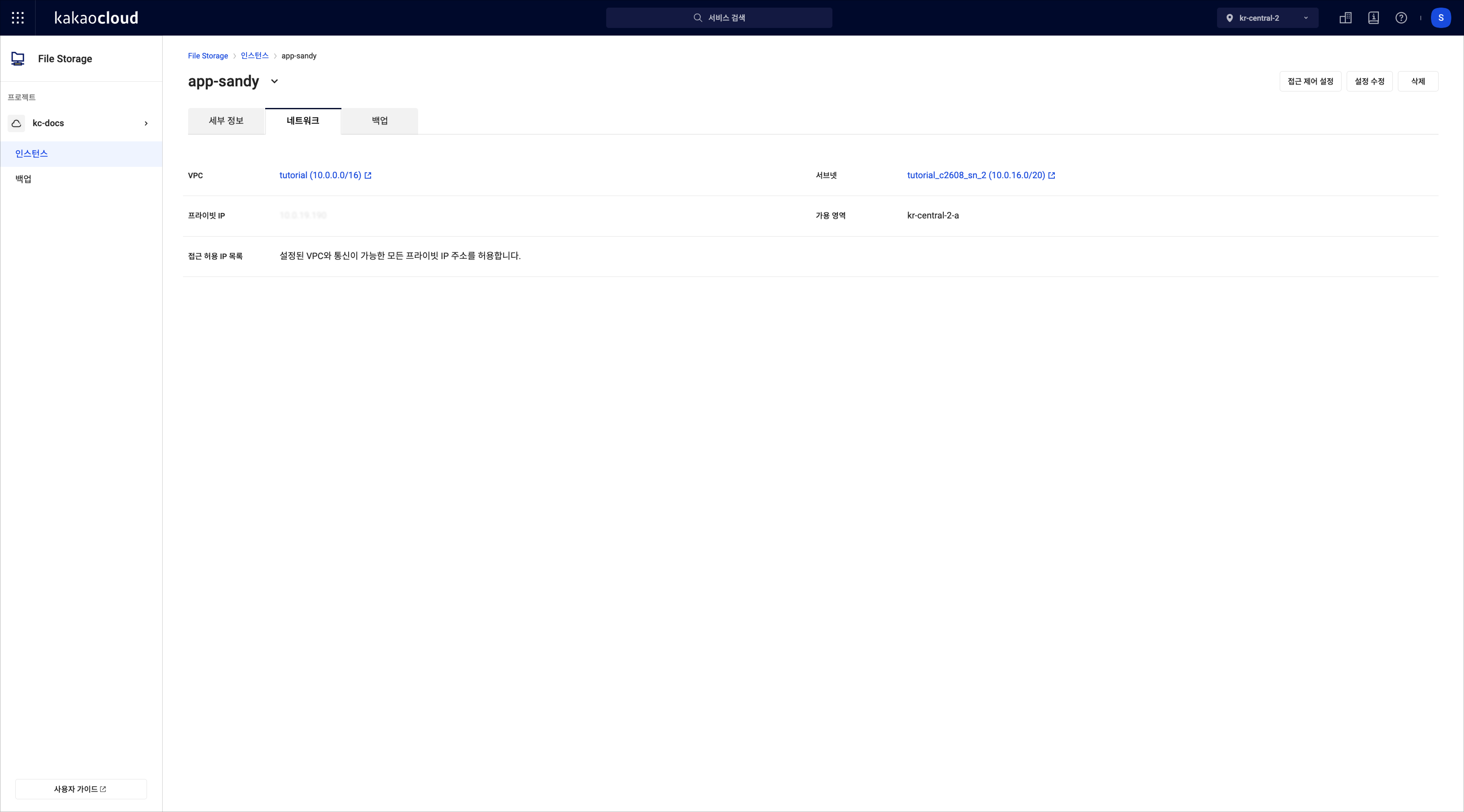 Instance network information
Category Description VPC VPC used for instance Private IP Assigned private IP Allowed IP list List of IPs that can access instance and access control settings Subnet Subnet in VPC Availability zone Availability zone where instance is created
Configure access control
You can configure resources that can access File Storage instance.
-
Go to KakaoCloud console > Storage > File Storage.
-
In Instance menu, click instance to view details.
-
Click the Network tab, then click the [Configure access control] button.
Category Description Network configuration Configure VPC and subnet resources
- VPC: Select VPC for instance
- Subnet: Select one subnet from VPCAccess control configuration Configure resources that can access File Storage instance
- Allow all private IP addresses that can communicate with configured VPC: Resources within VPC can access without additional configuration
- Restrict to allowed private IP addresses that can communicate with configured VPC: Only specified private IPs can access (up to 30)
💡 Note
- If selecting VPC shared with another project, resources in that project can also mount
- If inter-subnet access is not supported, access is not possible even if IP is specified
Configure backup
-
Go to KakaoCloud console > Storage > File Storage.
-
In Instance menu, click instance to view details.
-
Click Backup tab and review information.
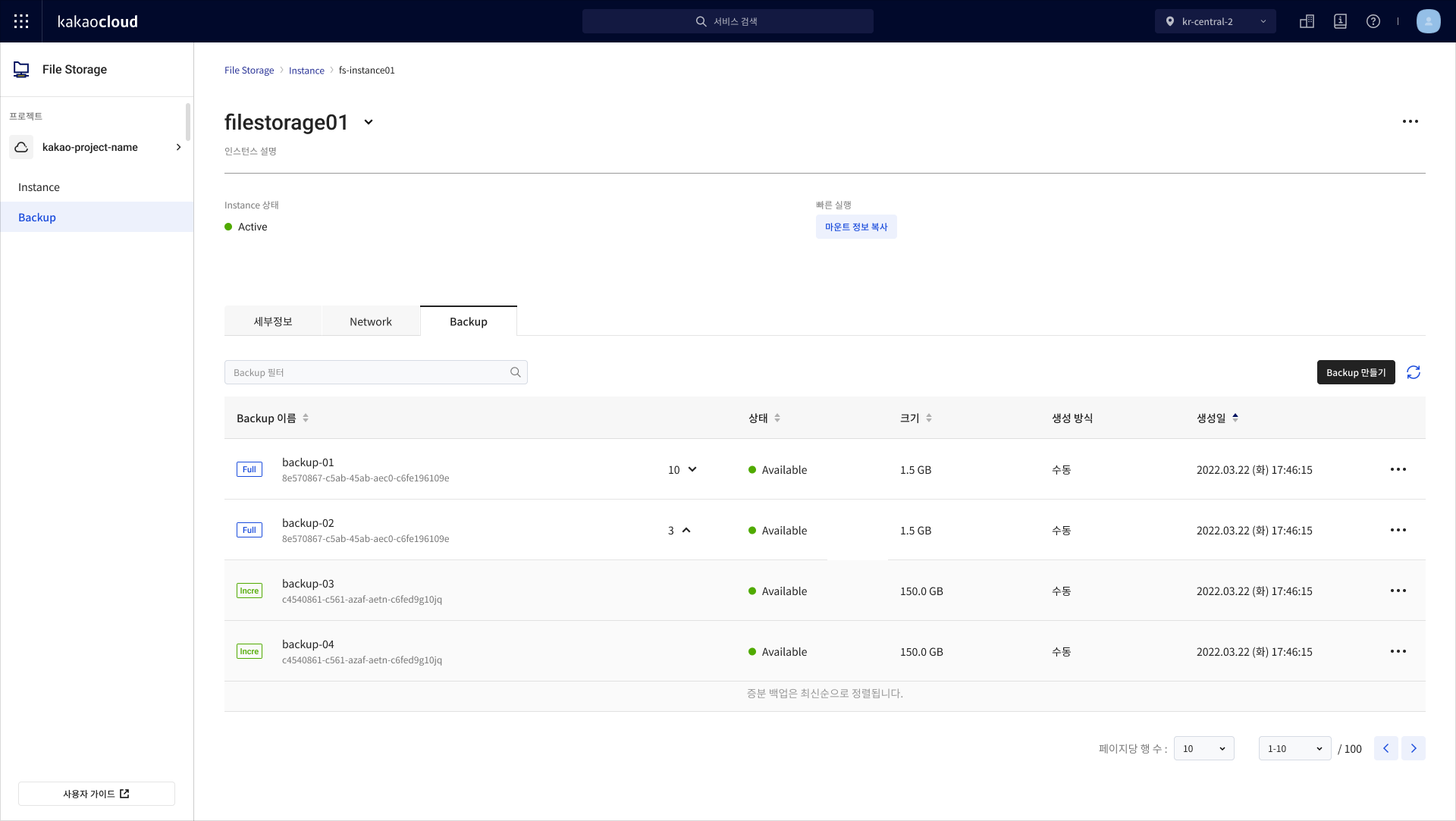 Backup information
Category Description Backup type - Full: Backup entire instance
-Incremental: Backup changes since last full backupBackup name Name entered during backup creation Backup ID Unique backup ID Incremental backup count Number of incremental backups based on full backup Status Backup status
-Create: Creating backup
-Available: Available
-Restoring: Restoring
-Deleting: Deleting
-Error: UnavailableSize Backup size Target instance Source instance Created at Creation date
Delete instance
Deleting instance terminates operation and fully releases resources. Once released, instance disappears from list and billing stops. Instance can be deleted only when status is Active.
Deleted instance cannot be recovered after termination.
-
Go to KakaoCloud console > Storage > File Storage.
-
In the Instance menu, click the [⋮] button for the target instance, then select Delete.
-
In the Delete instance pop-up, enter the instance name and click the [Delete] button.