Infinite file system
This guide explains how to create and manage Infinite file systems in File Storage.
Create file system
To create an Infinite file system:
-
Go to KakaoCloud console > Beyond Storage Service > File Storage.
-
In the Infinite file system menu, click the [Create file system] button.
-
Enter the required information and click the [Create] button.
Category Description File system information Enter the file system name and description File service Select a protocol for the server OS to mount
-NFS: Network file system used in Linux/UNIX environments
-SMB: Network file system used in Windows environmentsDeployment type Select single AZ. Multi-AZ will be supported later Network settings VPC: Select the VPC for the file system
Subnet: Select the subnet where the file system will be deployed from subnets shared with the project
Security group: Select the security group to apply to the file systemWindows authentication ( SMBonly)Enter Windows authentication information for Active Directory integration
- Active Directory domain name: Active Directory domain name
- DNS server IP address: Primary and secondary DNS server IP addresses
- Active Directory service account: Account with domain join permissions
- Service account password: Password for the account with domain join permissionsinfoBefore creating an Infinite file system that uses the SMB protocol, make sure to check SMB and Active Directory prerequisites. If the prerequisites are not met, an error can occur during file system creation.
Manage file systems
To manage file systems:
View file system list
You can view the list of created file systems and their basic information.
-
Go to KakaoCloud console > Beyond Storage Service > File Storage.
-
In the Infinite file system menu, view the current file systems and their basic information.
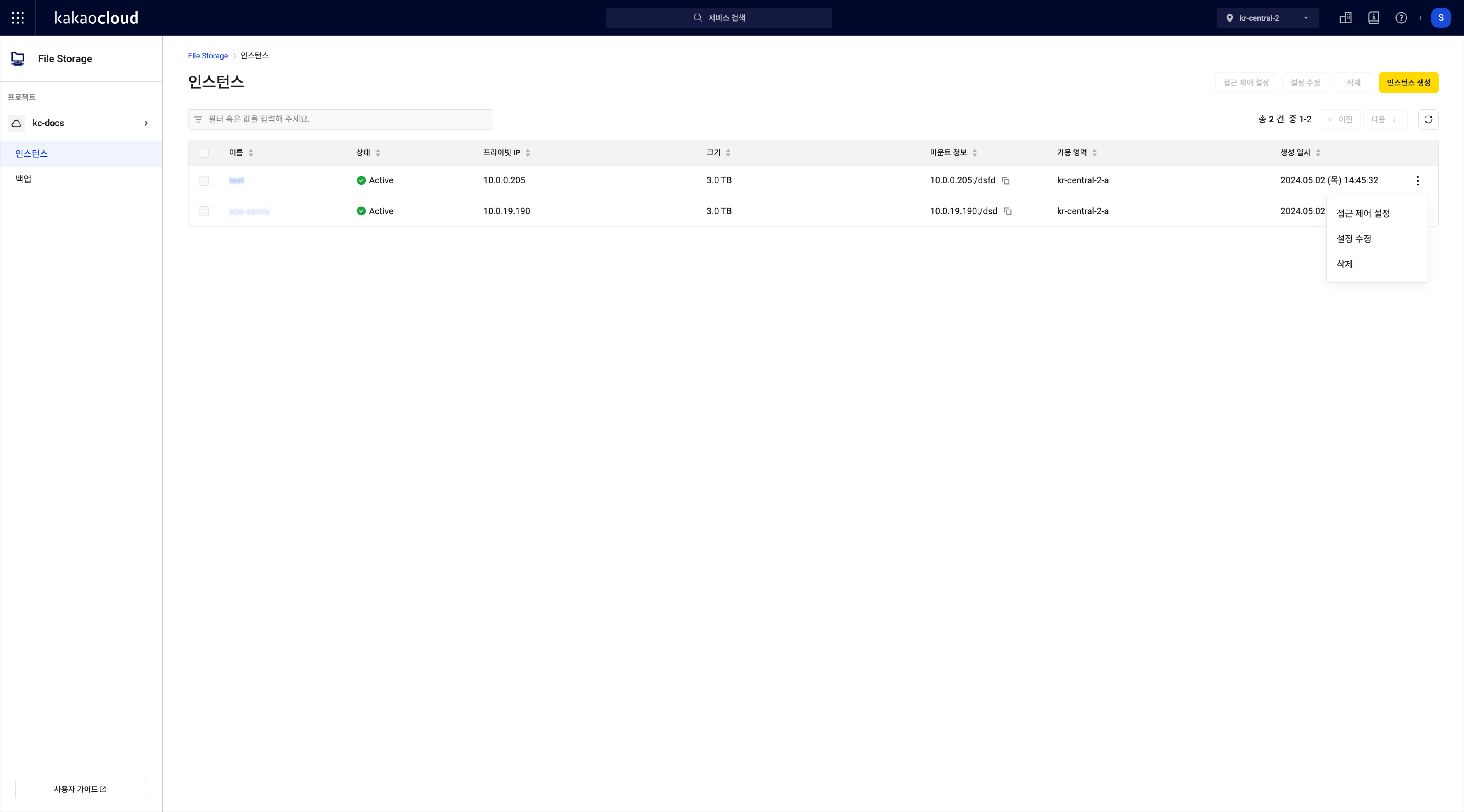 File system list
Category Description Name File system name File service File service type provided, such as SMBorNFSStatus File system status
- For details, see File system lifecycle and stateUsage Size of data stored in the file system Availability zone Availability zone where the file system was created Private IP Service private IP address of the file system Created at File system creation date and time [⋮] button Edit: Modify the file system description
Delete: Delete the file system
View file system details
You can view file system configuration and network information.
-
Go to KakaoCloud console > Beyond Storage Service > File Storage.
-
In the Infinite file system menu, click the file system whose details you want to view.
-
Click the Details tab and review the information.
Category Item Description Resource information Name File system name ID File system UUID Creator Account that created the file system Modified at Date and time when the file system was last modified Created at File system creation date and time Network VPC, subnet, availability zone, and private IP information of the file system Windows authentication information (SMB only) Domain name Active Directory domain name DNS server IP DNS server IP address of the domain Service account user name Service account name used for domain join
View file system security
You can view the security group and rules applied to the file system.
- Go to KakaoCloud console > Beyond Storage Service > File Storage.
- In the Infinite file system menu, click the file system whose details you want to view.
- Click the Security tab and review security group information.
File system service ports
To access the file system, the corresponding ports must be allowed in the security group. The default security group rules for client mounting are as follows.
| File service | Direction | Protocol | Port |
|---|---|---|---|
| NFS | Inbound | TCP | 2049 |
| SMB | Inbound | TCP | 445 |
Manage shared volumes
A shared volume is a logical storage unit used to separate and manage data by service or application. You can configure an independent access point, quota, and access control for each shared volume, and mount it to clients as separate storage.
View shared volume list
You can view the list of shared volumes created in the file system.
-
Go to KakaoCloud console > Beyond Storage Service > File Storage.
-
In the Infinite file system menu, click the file system whose shared volumes you want to view.
-
Click the Shared volume tab and review the list.
Category Description Shared volume name Shared folder and mount point name Access point Access point used when mounting the file system
Automatically generated based on the private IP address and shared volume nameStatus Current shared volume status
-Creating: Creating the shared volume
-Active: Running normally and available
-Updating: Configuration operation in progress
-Deleting: Deleting the shared volume
-Error: Unavailable due to a shared volume errorQuota Quota size for limiting volume usage Modified at Date and time when the shared volume was last modified Created at Date and time when the shared volume was created
Create shared volume
To create a shared volume in a file system:
- Go to KakaoCloud console > Beyond Storage Service > File Storage.
- In the Infinite file system menu, click the file system where you want to create a shared volume.
- Click the Shared volume tab, then click the [Create shared volume] button.
- Enter the required information according to the
NFSorSMBfile service and click the [Create] button.
- NFS file service
- SMB file service
| Category | Description |
|---|---|
| Shared volume name | Shared folder and mount point name |
| Access point | Access point used when mounting the file system - Mount address automatically generated based on the private IP address |
| Description (optional) | Shared folder description |
| Quota | Shared folder size limit. If disabled, no quota limit is applied |
| Access control | Set permissions for accessing the shared folder over the network - At least one IP address with read/write (root allowed) permission is required - Permissions: Read/write (root allowed), Read-only (root allowed), Read/write (secure mode), Read-only (secure mode) |
| Category | Description |
|---|---|
| Shared volume name | Shared folder and mount point name |
| Access point | Access point used when mounting the file system Automatically generated based on the private IP address and shared volume name |
| Description (optional) | Shared folder description |
| Quota | Shared folder size limit. If disabled, no quota limit is applied |
| SMB permissions | Set shared volume access permissions by user or group - Items: Identifier, Identifier type, Access level |
Configure shared volume access control
Shared volume access control is configured differently depending on the file service type, NFS or SMB. To configure access control:
- Go to KakaoCloud console > Beyond Storage Service > File Storage.
- In the Infinite file system menu, click the file system whose shared volume you want to configure.
- In the Shared volume tab, click the button for the file service type.
NFS: [Access control settings]SMB: [SMB permission settings]
- NFS: [Access control settings]
- SMB: [SMB permission settings]
Access control sets permissions for shared volumes based on IP addresses or IP ranges. Available permission types are as follows.
| Permission | Description |
|---|---|
| Read/write (root allowed) | Allows both read and write access, and recognizes the remote client's root user as root |
| Read-only (root allowed) | Allows read-only access and preserves root user permissions |
| Read-only (secure mode) | Allows read-only access and maps the client's root user to a regular user (nobody) |
| Read/write (secure mode) | Allows both read and write access, but restricts the client's root user to a regular user (nobody) |
- At least one IP address with read/write (root allowed) permission is required.
- If IP ranges overlap, the rule configured first takes precedence.
NFS access control changes, such as export options or permission policies, may not be applied immediately to already mounted NFS sessions. To apply changed access control to a client, unmount the existing mount and mount it again.
You can apply the changes with the following procedure.
umount /mnt
- Unmounts the NFS file system mounted on
/mnt. - Clears access control information and cache retained in the existing session.
- Unmounting can fail if a process is using the path.
mount /mnt
- Mounts the
/mntpath again based on the settings defined in/etc/fstab. - The NFS session is recreated with the newly configured access control policy, such as export options and permissions.
- Enter the required information for the file service and click the [Save] button.
SMB permissions control access levels by identifier. Each item is described as follows.
| Identifier type | Identifier |
|---|---|
| Predefined | Groups predefined by the system or domain - everyone: Grants permissions to all users regardless of authentication. Anonymous users may not be included depending on local security settings- authenticatedusers: Grants permissions to users authenticated in the domain- anonymous: Grants permissions to anonymous users accessing without authentication |
| User_Name | Identifies permissions based on a domain user name or group |
| Sid | Security Identifier that uniquely identifies a user, group, or computer in the domain |
Access levels can be set for all identifier types and are as follows.
| Access level | Description |
|---|---|
| no | No permission |
| read | Read permission |
| change | Read, modify, and delete permissions |
| full | Full permission |
SMB permissions control the default allow or deny permissions for users and groups that access a shared folder over the network. To restrict detailed access at the file and folder level, such as read, write, and modify, Windows NTFS security permissions are required. If the two permissions differ, the more restrictive permission takes precedence.
To reduce management complexity, the following approach is recommended.
- SMB permissions: Grant Full Control to Authenticated Users or a specific group to allow network access
- NTFS permissions ([Security] tab): Configure detailed permissions, such as read, write, and modify, by user
- In Windows File Explorer, select the directory where you want to configure permissions in the shared folder mounted as a network drive.
- Select the directory's [Properties] > [Security] tab.
- Click the [Edit] button to specify permissions, such as read, write, and modify, by user and group.