3. Analyze Kafka messages using Data Catalog and Data Query
Learn how to register Kafka data stored in Object Storage with Data Catalog and query it through Data Query.
- Estimated time: 30 minutes
- Recommended OS: macOS, Ubuntu
- IAM permission: Project administrator role
- Prerequisites
- Complete Load Kafka data into Object Storage
About this scenario
This tutorial corresponds to the Processing/Analytics stage in the overall architecture. You register real-time data stored in Object Storage through Kafka with Data Catalog, and configure an environment where you can query, filter, and aggregate it with SQL using Data Query.
Data Catalog manages stored data as metadata and works with Data Query to support real-time data validation and analysis.
You will cover the following:
- Create a Data Catalog and database
- Create a table through Data Query
- Write and run queries
- Check results and download CSV files
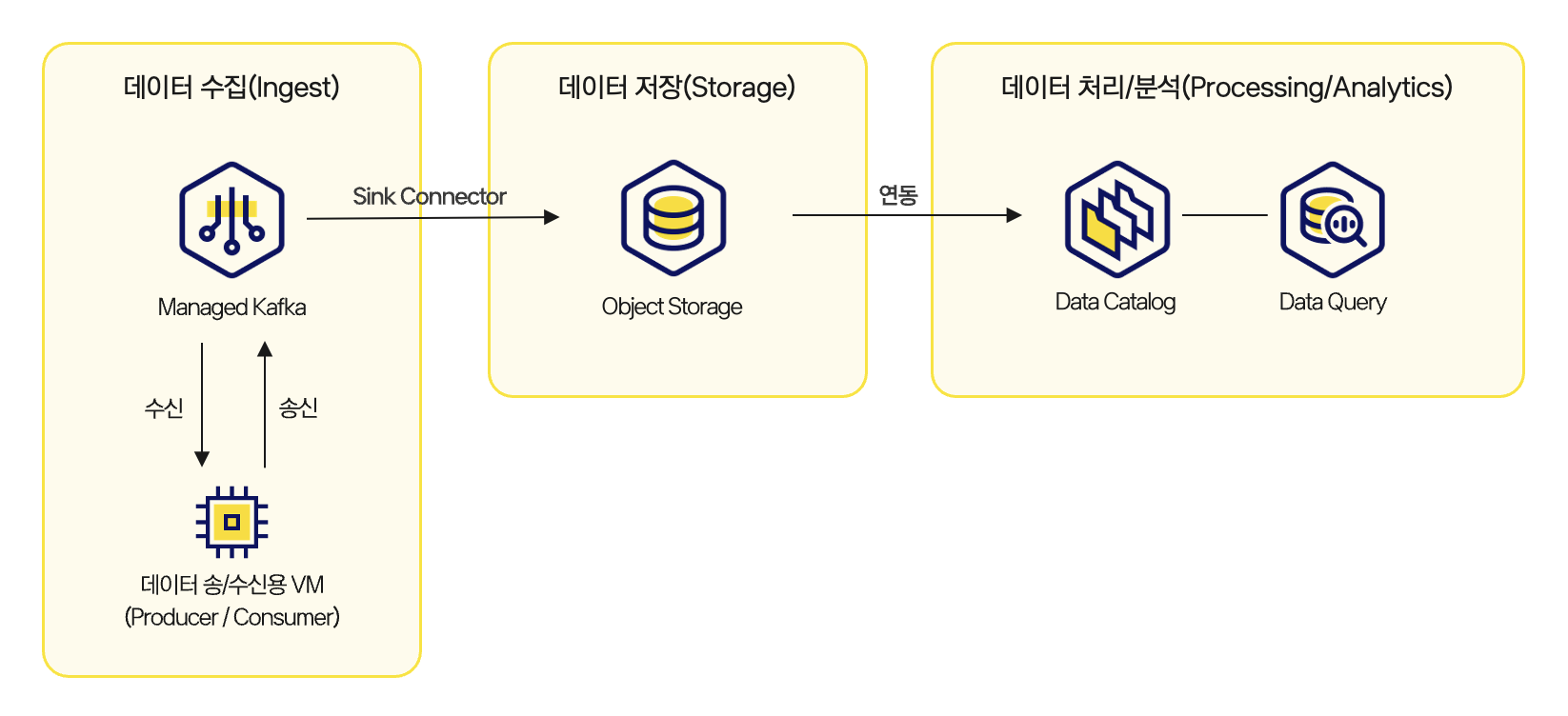 Architecture
Before you start
This tutorial covers the process of registering Kafka messages stored in Object Storage as a table and converting them into an analyzable format. To proceed smoothly, complete Load Kafka data into Object Storage first. At that time, check the bucket name and message path where the data is stored.
Step 1. Check the Object Storage path
Check the path where Kafka Connector stored messages. This path is used by the Data Catalog crawler to configure the table, so it must be verified accurately.
Identifying the Object Storage path clearly helps automated table registration proceed smoothly in later steps and prevents table creation failures caused by incorrect paths.
- Go to KakaoCloud console > Object Storage > tutorial-kafka-bucket.
- Check which path (
prefix) contains the objects stored through Kafka Connector. Example:tutorial-kafka-bucket/tutorial-topic/topic/partition_0/year_2025/month_07/day_06/hour_22 - Copy the top-level path required to create the table (
tutorial-kafka-bucket/tutorial-topic/topic/partition_0) and record it in a text editor.
Step 2. Configure Data Catalog
Data Catalog manages data stored in Object Storage as metadata and enables SQL-based analysis. In this step, you create a catalog and database and connect the storage path (Object Storage bucket) to Data Catalog.
-
Go to KakaoCloud console > Analytics > Data Catalog.
-
In the Catalog menu, click Create Catalog.
-
In the Create Catalog popup, enter the information and click Create.
Item Value Name Catalog name / Example - kafka_catalogVPC Select the network for the catalog
- VPC:tutorial-amk-vpc
- Subnet:main -
Click the created catalog (
kafka_catalog) and click Create Database in the database list. -
In the database creation popup, enter the information below and click Create.
Item Value Catalog Created catalog name / Example - kafka_catalogName Database name / Example - tutorial_kafkaPath Check S3 connection
- Bucket name:tutorial-kafka-bucket
- Directory:tutorial-topic/topic
Step 3. Prepare query result storage
Data Query stores query execution results as files in Object Storage. Therefore, you must configure result storage before running queries.
For configuration instructions, refer to Prepare query result storage.
Step 4. Query with Data Query
Create a table through the database created in Data Catalog, add partitions, and query real-time data.
-
Go to KakaoCloud console > Analytics > Data Query > Query Editor.
-
Select the data source and database.
Category Value Data source Select the catalog created in Data Catalog, kafka_catalogDatabase Select the database created in Data Catalog, tutorial_kafka -
Create a table in the query editor on the right.
Create tableCREATE TABLE ${TABLE_NAME} (
data varchar,
year varchar,
month varchar,
day varchar,
hour varchar
)
WITH (
format = 'TEXTFILE',
external_location = 's3a://${BUCKET_NAME}/${TOPIC_NAME}/topic/partition_0',
partitioned_by = ARRAY['year','month','day','hour']
);환경변수 설명 TABLE_NAME🖌︎ Table name / Example - kafka_table BUCKET_NAME🖌︎ Bucket name / Example - tutorial-kafka-bucket TOPIC_NAME🖌︎ Topic name / Example - tutorial-topic -
Manually add a partition for the log date you want to query.
Add partitionCALL ${CATALOG_NAME}.system.register_partition(
schema_name => '${DATABASE_NAME}',
table_name => '${TABLE_NAME}',
partition_columns => ARRAY['year', 'month', 'day', 'hour'],
partition_values => ARRAY['${YYYY}', '${MM}', '${DD}', '${HH}'],
location => 's3a://${BUCKET_NAME}/${TOPIC_NAME}/topic/partition_0/${PATH}'
);환경변수 설명 CATALOG_NAME🖌︎ Catalog name created in Data Catalog / Example - kafka_catalog DATABASE_NAME🖌︎ Database name created in Data Catalog / Example - tutorial_kafka TABLE_NAME🖌︎ Table name / Example - kafka_table YYYY🖌︎ Query year / Example - 2025 MM🖌︎ Query month / Example - 07 DD🖌︎ Query day / Example - 06 HH🖌︎ Query hour / Example - 23 BUCKET_NAME🖌︎ Bucket name / Example - tutorial-kafka-bucket TOPIC_NAME🖌︎ Topic name / Example - tutorial-topic PATH🖌︎ Date folder format where data is stored / Example - year_2025/month_07/day_06/hour_23 NoteCurrently, partitions must be added manually in the Data Query query editor for each date to query, as shown above.
Automatic partition addition in Data Catalog is planned for a future update. -
Query the data.
Data query exampleSELECT *
FROM ${TABLE_NAME}
WHERE year = '2025' AND month = '07' AND day = '06' AND hour = '23';환경변수 설명 TABLE_NAME🖌︎ Table name / Example - kafka_table -
An example query result is shown below.
raw_data year month day hour hello world! 2025 07 06 23 hello tester! 2025 07 06 23
Wrap-up
You loaded Kafka messages into Object Storage, registered them with Data Catalog, and queried them with SQL through Data Query. You have now completed the full flow of a real-time data pipeline, from collection -> storage -> analysis.
In a production environment, you can extend this tutorial to support various analytics scenarios such as event detection, scheduled reporting, and dashboard visualization.